
Tree Structure
Tree Layout
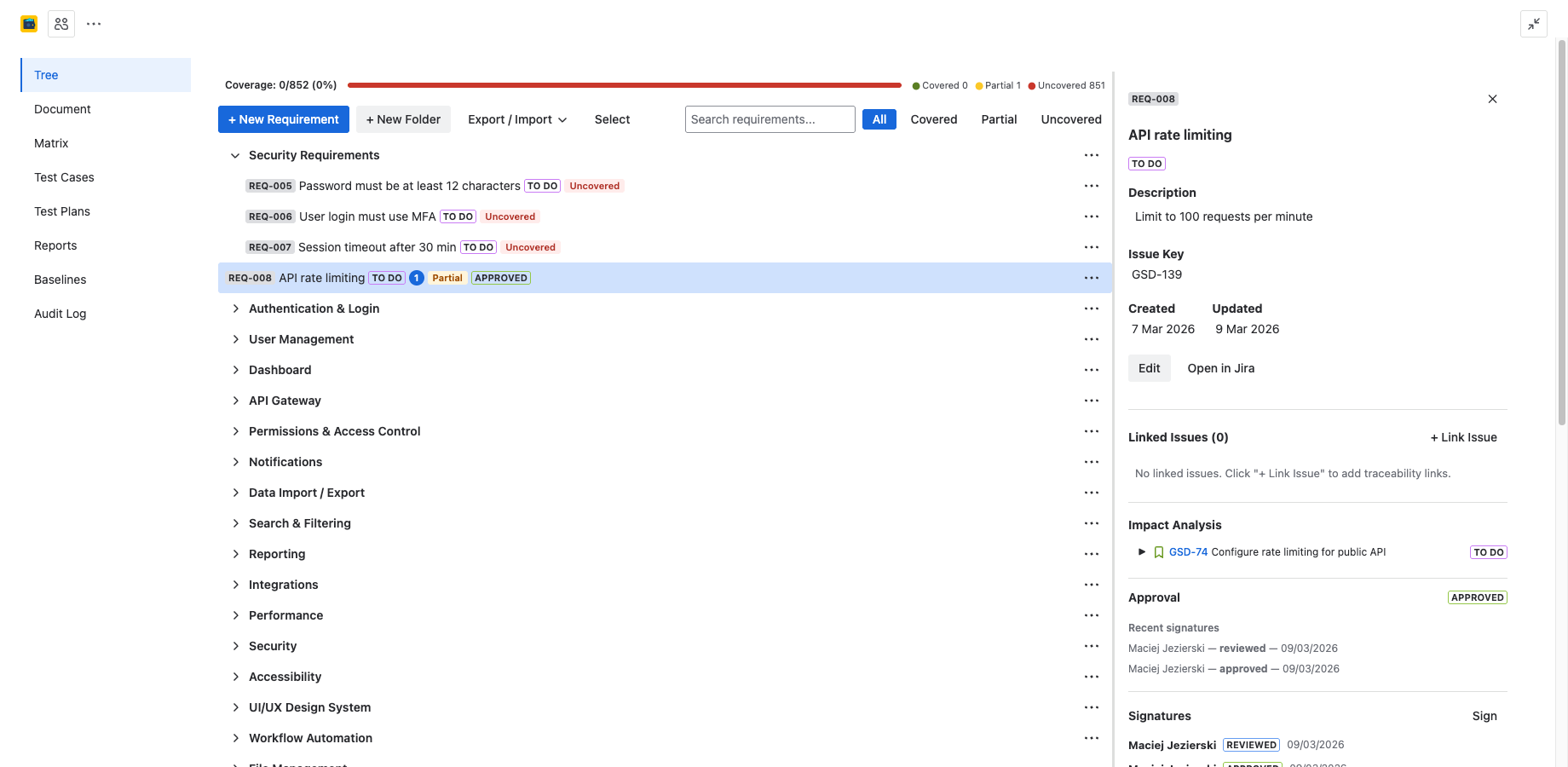
The Requirements Tree is the primary view for organizing your specifications. It displays requirements inside a hierarchical folder structure with unlimited nesting depth.
- Folders — organizational containers that group related requirements. Folders can contain other folders and requirements.
- Requirements — leaf nodes that represent individual specifications. Each requirement is a Jira issue.
The tree supports expand/collapse for folders, and each row shows the requirement ID, summary, type badge, and coverage indicator at a glance.
Creating Folders
To create a new folder:
- Select the parent folder (or the root level) where you want the new folder.
- Click the New Folder button in the toolbar or press F.
- Type a name for the folder and press Enter.
Folders are stored in 4Spec's internal database — they are not Jira issues. This keeps your Jira backlog clean while giving you full organizational control.
Drag-and-Drop Reordering
4Spec supports full drag-and-drop for organizing your tree:
Within a Folder
Drag a requirement or sub-folder up or down to change its position within the current folder. A drop indicator shows where the item will land.
Between Folders
Drag a requirement or folder onto another folder to move it inside. The target folder highlights when you hover over it. You can also drag items to the root level.
All drag-and-drop operations are saved immediately. The tree order is preserved across sessions and for all team members.
Renaming and Deleting Folders
Renaming
Right-click a folder or use the kebab menu to select Rename. Edit the name inline and press Enter to save.
Deleting
Right-click a folder or use the kebab menu to select Delete. If the folder contains requirements, you will be prompted to confirm. Requirements inside the deleted folder are moved to the parent folder — they are not deleted.
Search and Filtering
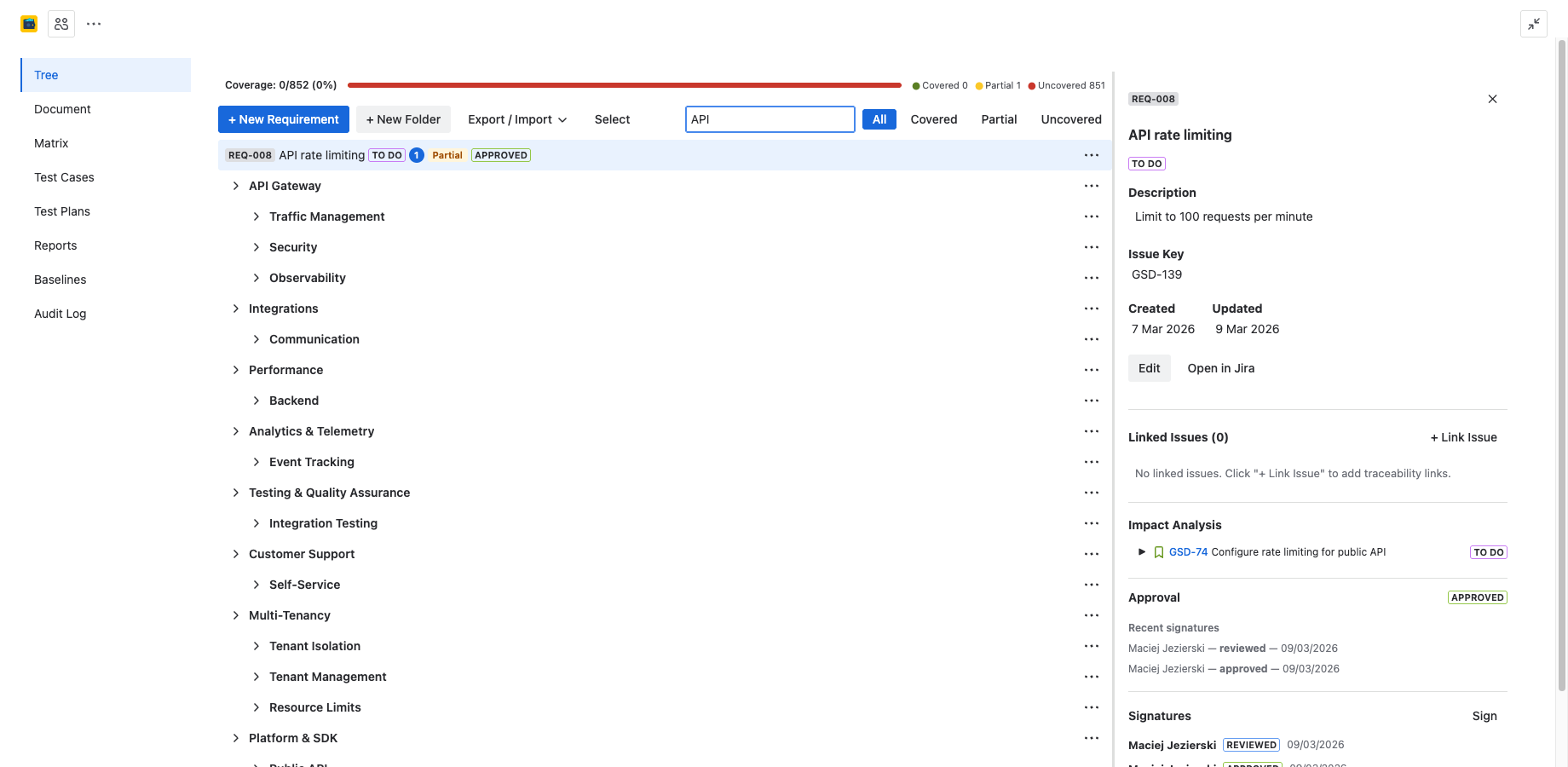
Use the search bar at the top of the tree to filter requirements:
- By summary — type any text to filter requirements whose summary contains the search term.
- By status — use the status filter dropdown to show only requirements in a specific Jira status.
- By coverage — filter by coverage status (Covered, Partial, Uncovered) to find gaps in traceability.
Filters apply across all folders. Matching requirements are shown with their parent folder path for context. Clear the filter to return to the full tree view.
Keyboard Shortcuts
The tree view supports keyboard shortcuts for fast navigation and actions:
| Shortcut | Action |
|---|---|
| N | Create a new requirement in the current folder |
| F | Create a new folder in the current location |
| Del | Delete the selected requirement(s) or folder |
| Enter | Open the detail panel for the selected requirement |
| Esc | Close the detail panel or cancel the current operation |
| ? | Show the keyboard shortcuts help dialog |
Import from CSV
4Spec supports importing requirements from CSV files for migrating from other tools or bulk creation:
- Click Import in the toolbar to open the import dialog.
- Upload your CSV file. The file should contain columns for summary, description, and optionally type.
- Preview the parsed requirements and map CSV columns to 4Spec fields.
- Click Create to import all requirements into the selected folder.
Each imported row becomes a new Jira Requirement issue with an auto-generated ID. The import is recorded in the Audit Log.
Next Steps
- Requirements — learn about requirement fields, types, and bulk operations.
- Traceability — link requirements to Jira issues and track coverage.
- Document View — render the tree as a structured specification document.
Need Help?
For questions or feedback, contact contact@be4.software.