
Approvals & Signatures
4Spec provides a full approval workflow with electronic signatures, designed for teams that need formal sign-off on requirements — from lightweight team reviews to regulated-industry compliance with audit-ready records.
Approval Workflow States
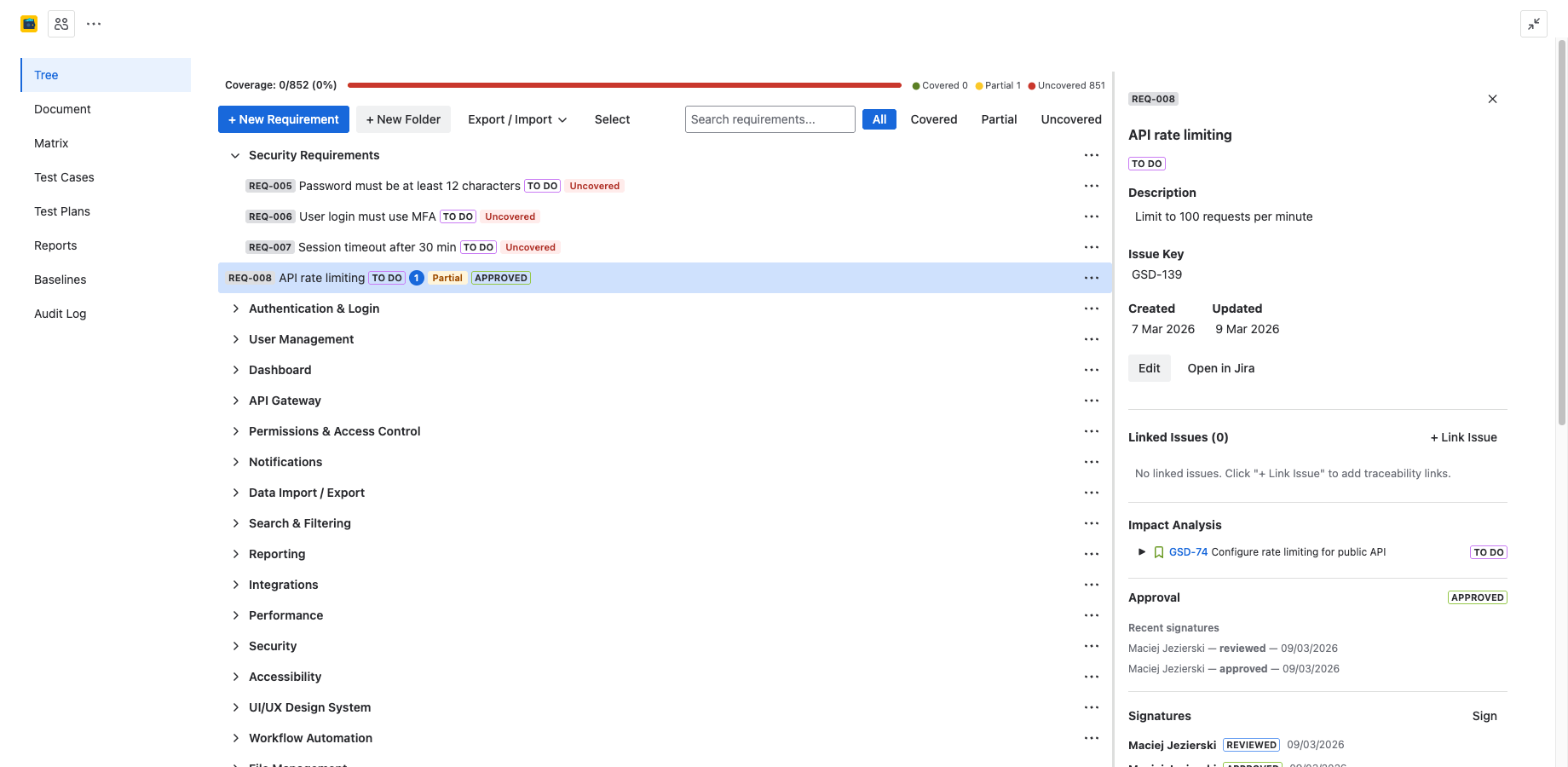
Every requirement follows a four-state lifecycle:
| State | Meaning |
|---|---|
| Draft | The requirement is being authored or revised. It can be freely edited. |
| In Review | The requirement has been submitted for review. Reviewers and approvers are notified. |
| Approved | All required signatures have been collected. The requirement is locked against edits. |
| Obsolete | The requirement has been retired. It is read-only and excluded from coverage calculations. |
The workflow progresses linearly: Draft → In Review → Approved. A requirement can be moved to Obsolete from any state.
Submitting for Review
When a requirement is ready, click Submit for Review in the requirement detail panel. This transitions the state from Draft to In Review and notifies all assigned reviewers and approvers.
Once submitted, the requirement content is locked — edits are not allowed while it is In Review. If changes are needed, a reviewer must reject the requirement to send it back to Draft.
Approving or Rejecting
Reviewers and approvers see pending items in the requirement detail panel. Each person can:
- Approve — adds their signature to the requirement. Once all required signers have approved, the requirement transitions to Approved.
- Reject — sends the requirement back to Draft with a mandatory rejection reason. All existing signatures are cleared.
Approvers can also unapprove — withdraw their signature before the requirement reaches the Approved state (i.e., before all required signatures are collected).
Role-Based Approval
4Spec supports two approval roles:
- Reviewers — provide feedback and can approve or reject. Their approval counts toward the signature requirement.
- Approvers — have final authority. Their approval is mandatory for the requirement to reach Approved status.
You can assign any Jira user as a reviewer or approver on a per-requirement basis from the detail panel.
Minimum Signers
In project settings, you can configure the minimum number of signers required before a requirement can transition to Approved. For example, setting this to 2 means at least two people must sign before the requirement is fully approved — even if only one approver is assigned.
Electronic Signatures
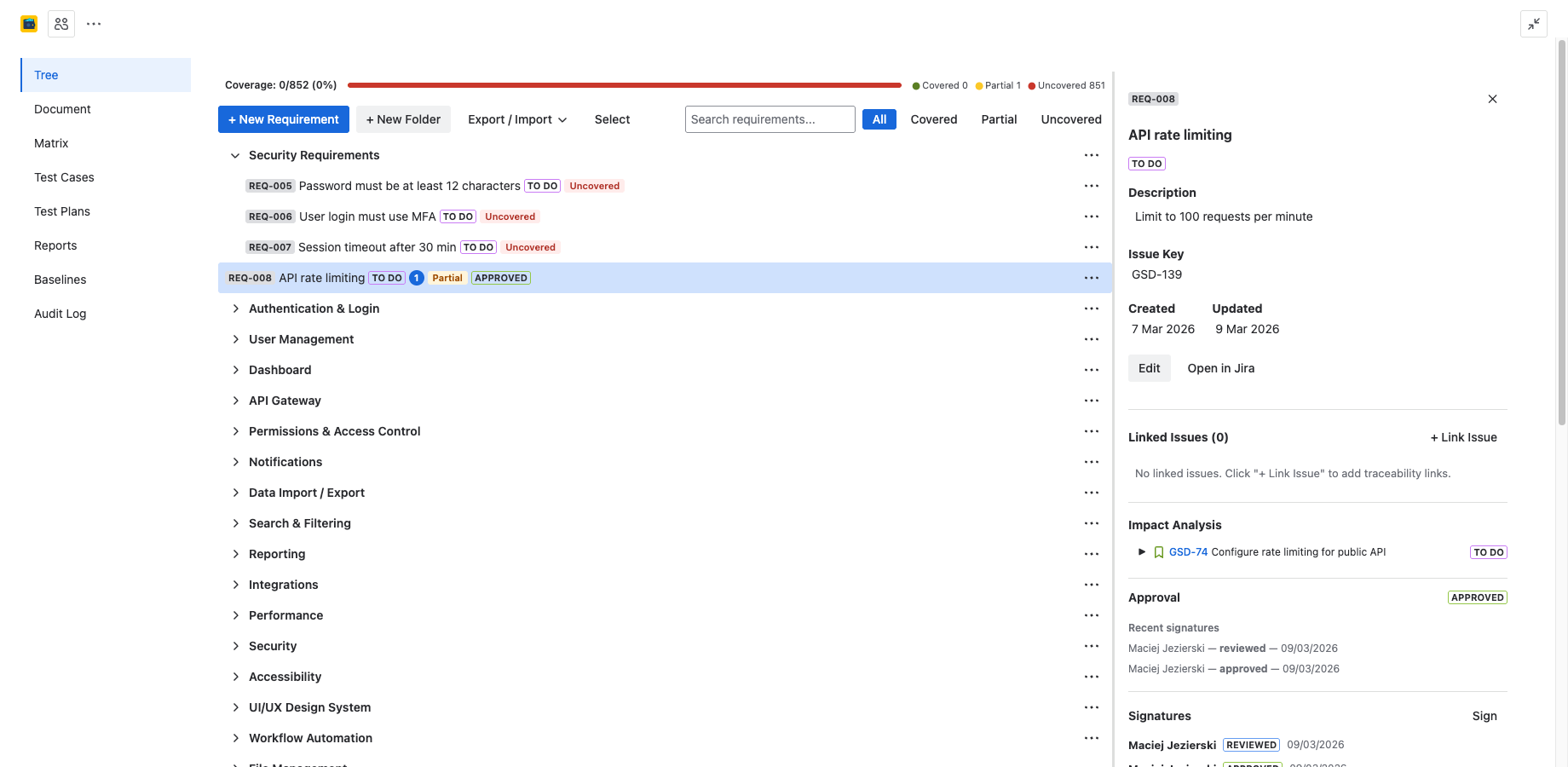
When a reviewer or approver approves a requirement, they provide an electronic signature. Each signature records:
- Meaning — the signer selects a meaning: Approved, Reviewed, or Verified. This distinguishes between different levels of sign-off.
- Comment — an optional free-text comment explaining the decision or noting conditions.
- User identity — the Jira account ID of the signer, resolved to a display name.
- Timestamp — the exact date and time the signature was applied.
All signatures are recorded in the audit log as immutable entries and cannot be modified or deleted after the fact.
Auto-Revert to Draft on Edit
When the Revert to Draft on edit setting is enabled in project settings, any modification to an Approved requirement automatically reverts it to Draft status and clears all signatures. This ensures that approved content is never silently changed — any edit restarts the approval cycle.
This behavior can be toggled per project in Admin & Settings.
Safety Classification
For teams working in regulated industries, 4Spec supports per-requirement safety classification. Safety classes help you categorize requirements by criticality level, which feeds into compliance reports and filtering.
What Is Safety Classification?
Safety classification assigns a criticality level to each requirement based on the potential impact of failure. Different industries use different classification schemes. 4Spec supports four built-in schemes and allows custom schemes.
Available Schemes
| Scheme | Levels | Standard |
|---|---|---|
| ASIL | QM, ASIL A, ASIL B, ASIL C, ASIL D | ISO 26262 (Automotive) |
| DAL | DAL E, DAL D, DAL C, DAL B, DAL A | DO-178C (Aerospace) |
| Risk Class | Class A, Class B, Class C | IEC 62304 (Medical Devices) |
| Custom | User-defined levels | Any domain |
Assigning a Safety Class
Open the requirement detail panel and select a safety class from the dropdown. The available options depend on the scheme configured in your project settings. Safety class assignments are recorded in the audit log.
Filtering by Safety Class
Reports and the traceability matrix can be filtered by safety class, allowing you to focus on high-criticality requirements. The compliance report groups results by safety class for audit-ready output.
Next Steps
- Audit Log — see how approvals and signatures are recorded in the immutable audit trail.
- Compliance Mapping — learn how 4Spec maps to ISO 13485, IEC 62304, DO-178C, and other standards.
- Admin & Settings — configure approval workflow options, minimum signers, and safety classification schemes.