
Traceability
Linking Requirements to Jira Issues
4Spec uses native Jira issue links to connect requirements to the stories, tasks, bugs, and epics that implement them. To link a requirement:
- Open a requirement by clicking on it in the tree or matrix view.
- In the detail panel, find the Linked Issues section.
- Click Link Issue to open the search dialog.
- Search for the Jira issue by key, summary, or JQL. Results appear as you type.
- Select the issue and choose the link type (requires or tests).
- Click Link to create the connection.
Links are bidirectional — the linked Jira issue also shows the requirement in its issue links section. Both "requires" and "tests" link types count toward coverage.
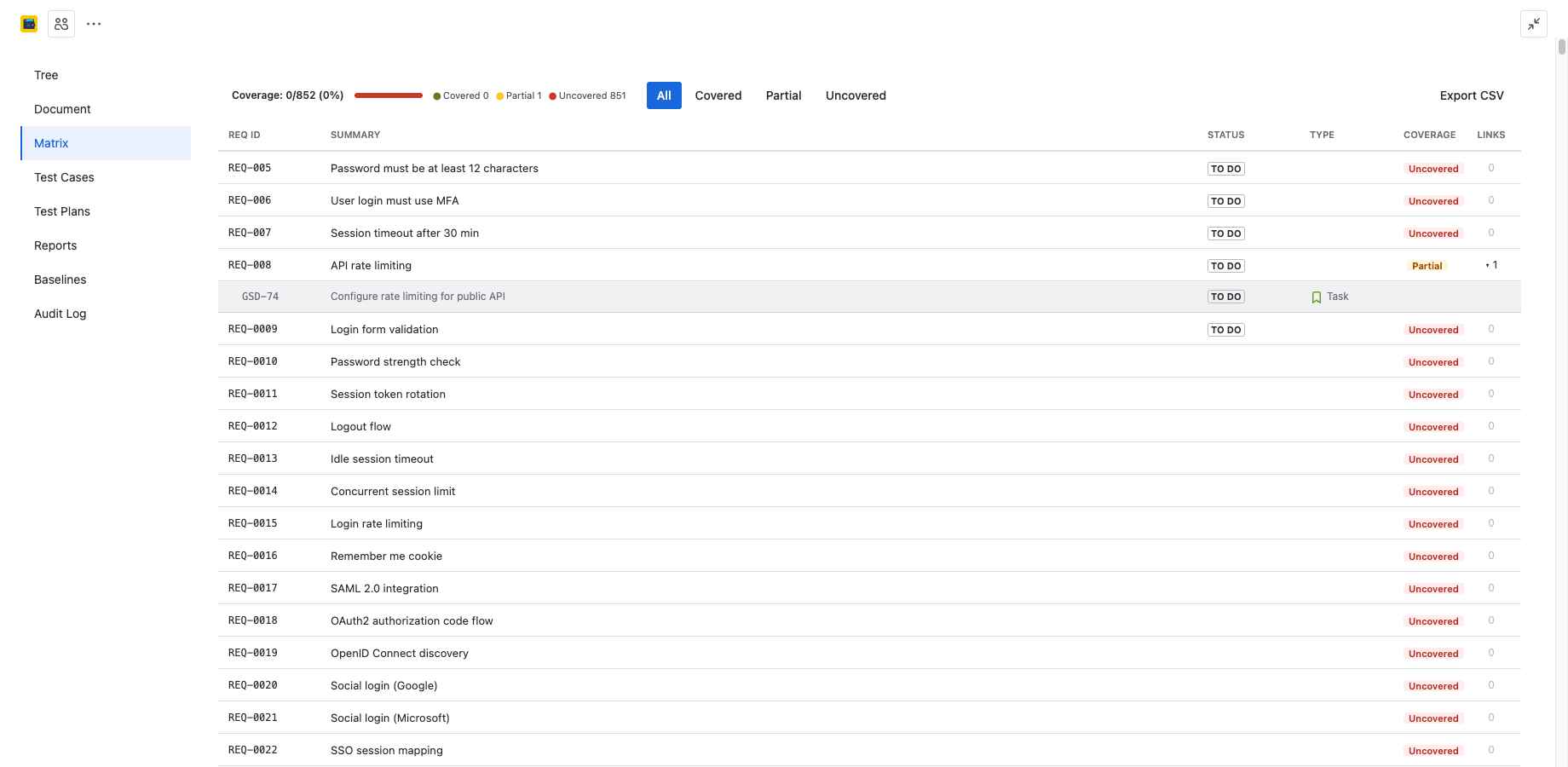
Coverage Badges
Every requirement displays a coverage badge that reflects how well it is linked to implementation and test issues:
| Badge | Meaning |
|---|---|
| Covered | The requirement has at least one linked issue via a "requires" link and at least one linked test case via a "tests" link. Full traceability is established. |
| Partial | The requirement has some links but is missing either implementation links or test links. Traceability is incomplete. |
| Uncovered | The requirement has no linked issues at all. This is a traceability gap that should be addressed. |
Coverage badges appear in the tree view, the traceability matrix, and the document view, so gaps are always visible.
Matrix View
The Traceability Matrix tab provides a spreadsheet-style view of all requirements and their linked issues:
- Rows — one row per requirement, showing the requirement ID, summary, and coverage badge.
- Linked issues — expand a row to see all linked Jira issues with their key, summary, status, and link type.
The matrix gives you a comprehensive overview of traceability across the entire project. Each row is expandable — click to reveal the linked issues for that requirement.
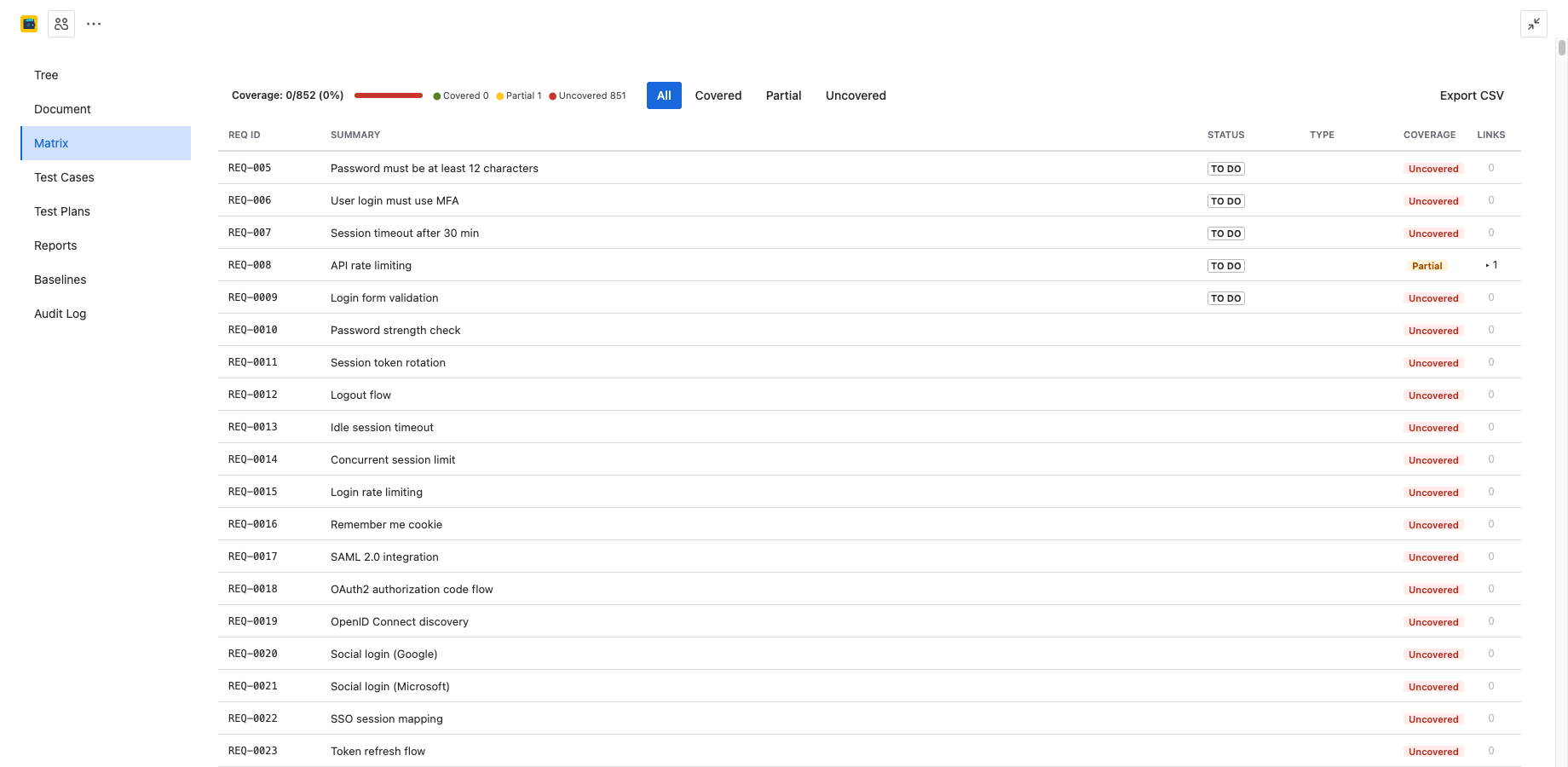
Matrix Filters
Use the filter controls at the top of the matrix to narrow down what you see:
- Coverage status — show only Covered, Partial, or Uncovered requirements. Use All to see everything.
- Folder — filter requirements by their folder in the tree.
- Issue status — filter linked issues by their Jira status (e.g., show only requirements linked to open issues).
Filters combine — for example, you can show only Uncovered requirements in a specific folder to find gaps quickly.
Coverage Summary Bar
At the top of the Traceability Matrix tab, a summary bar shows project-level coverage statistics:
- Total requirements — the total number of requirements in the project.
- Covered — count and percentage of fully covered requirements.
- Partial — count and percentage of partially covered requirements.
- Uncovered — count and percentage of requirements with no links.
The summary bar updates in real time as you add or remove links. It provides a quick health check of your project's traceability completeness.
Unlinking Issues
To remove a link between a requirement and a Jira issue:
- Open the requirement in the detail panel.
- In the Linked Issues section, find the issue you want to unlink.
- Click the unlink icon next to the issue.
- The link is removed immediately. The Jira issue itself is not affected — only the link is deleted.
Unlinking updates the coverage badge in real time. If removing a link causes the requirement to become Uncovered, the badge changes accordingly.
Next Steps
- Document View — render requirements as a structured specification with coverage indicators.
- Test Cases — create test cases and link them to requirements via "tests" links.
- Reports — generate coverage reports and compliance documentation.
Need Help?
For questions or feedback, contact contact@be4.software.