
Document View
How the Document View Works
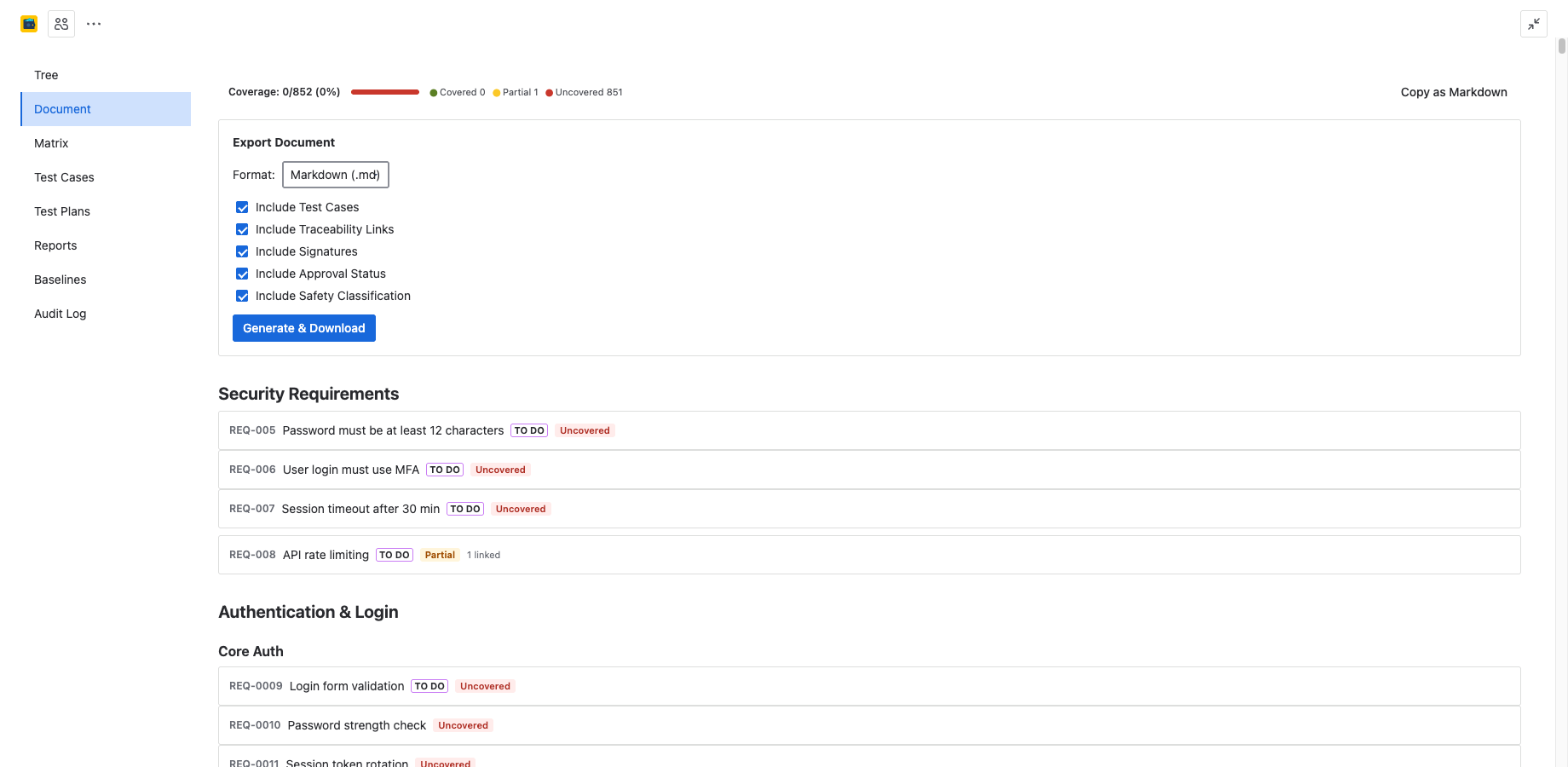
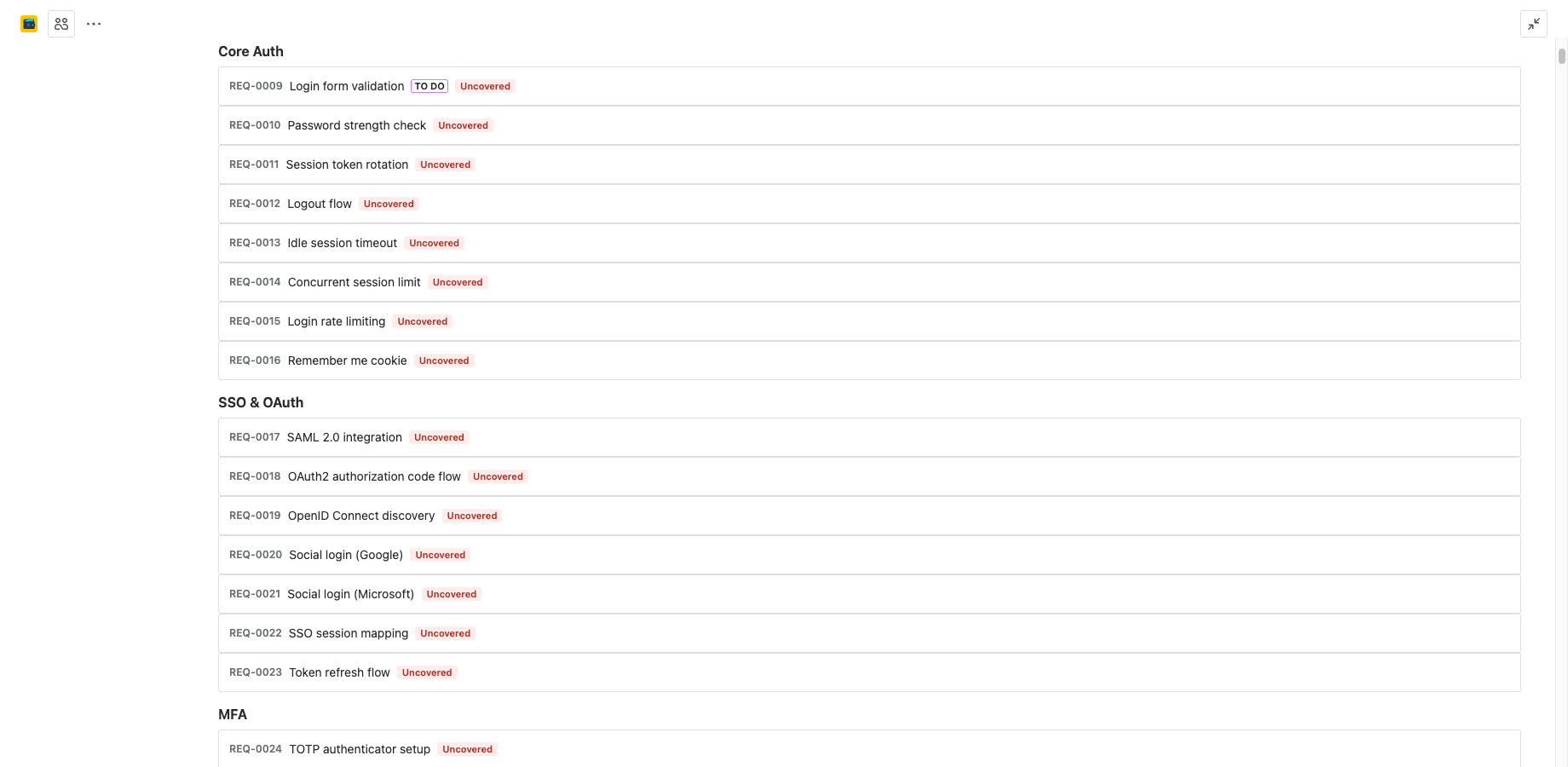
The Document View renders your requirements tree as a structured specification document. Instead of a tree with expandable nodes, you see a continuous, scrollable document where folders become section headings and requirements become numbered entries beneath them.
The document follows the same hierarchy as the tree — the order and nesting you set up in the Requirements Tree tab is exactly what appears in the document. Changes to the tree structure are reflected in the document view immediately.
Auto-Numbered Sections
The document view automatically generates section numbers based on the tree hierarchy:
- Top-level folders become sections: 1, 2, 3, etc.
- Nested folders become subsections: 1.1, 1.2, 2.1, etc.
- Deeper nesting continues the pattern: 1.1.1, 1.1.2, etc.
- Requirements within a folder are numbered sequentially under their parent section.
Section numbers update automatically when you reorder or restructure the tree. There is no manual numbering to maintain.
Content per Section
Each requirement section in the document includes:
- Summary — the requirement title, displayed as the section heading alongside the requirement ID.
- Description — the full requirement description text, rendered with formatting preserved.
- Status — the current Jira issue status, shown as a badge.
- Linked issues — a list of Jira issues linked to this requirement, with issue key and summary.
- Coverage indicator — the coverage badge (Covered, Partial, or Uncovered) for at-a-glance traceability status.
Folder sections show only their name as a heading, creating clear visual separation between requirement groups.
Export as Markdown
Click the Export button and select Markdown to generate a Markdown file of the entire specification. The export includes:
- Section headings with numbering (using
#,##,###syntax). - Requirement ID, summary, description, status, and linked issues.
- Coverage status for each requirement.
The Markdown file is downloaded directly to your browser. Use it for version-controlled documentation in Git, wikis, or static site generators.
Export as HTML
Select HTML from the export menu to generate a self-contained HTML file. The HTML export includes:
- All content from the Markdown export, rendered as styled HTML.
- Embedded CSS — no external dependencies. The file displays correctly when opened in any browser.
- A table of contents generated from the section headings.
- Print-optimized styles (see below).
The HTML file is ideal for sharing with stakeholders who do not use Jira, attaching to audit evidence packages, or archiving specifications.
Print-Friendly Layout
Both the document view in the browser and the exported HTML file include print-optimized CSS:
- Page breaks are inserted between major sections to prevent awkward splits.
- Coverage badges and status indicators are rendered in grayscale-friendly formats.
- Headers and footers include the project name and export date.
- Font sizes and margins are adjusted for A4/Letter paper.
Use your browser's Print function (Ctrl+P / Cmd+P) to print directly or save as PDF.
Impact Analysis
The document view includes an impact analysis feature that shows downstream dependencies for any requirement:
- Click the Impact button on a requirement section.
- 4Spec performs a 2-level downstream traversal: requirement → linked stories/tasks → their subtasks and bugs.
- The results appear inline below the requirement, showing all affected issues with their status.
Impact analysis helps you understand the ripple effect of changing a requirement before you make the change. It is especially useful during change control reviews in regulated projects.
Next Steps
- Traceability — learn how to link requirements and track coverage.
- Baselines — create point-in-time snapshots of your specification.
- Reports — generate coverage and compliance reports.
Need Help?
For questions or feedback, contact contact@be4.software.