
Requirements
Creating a Requirement
To create a new requirement:
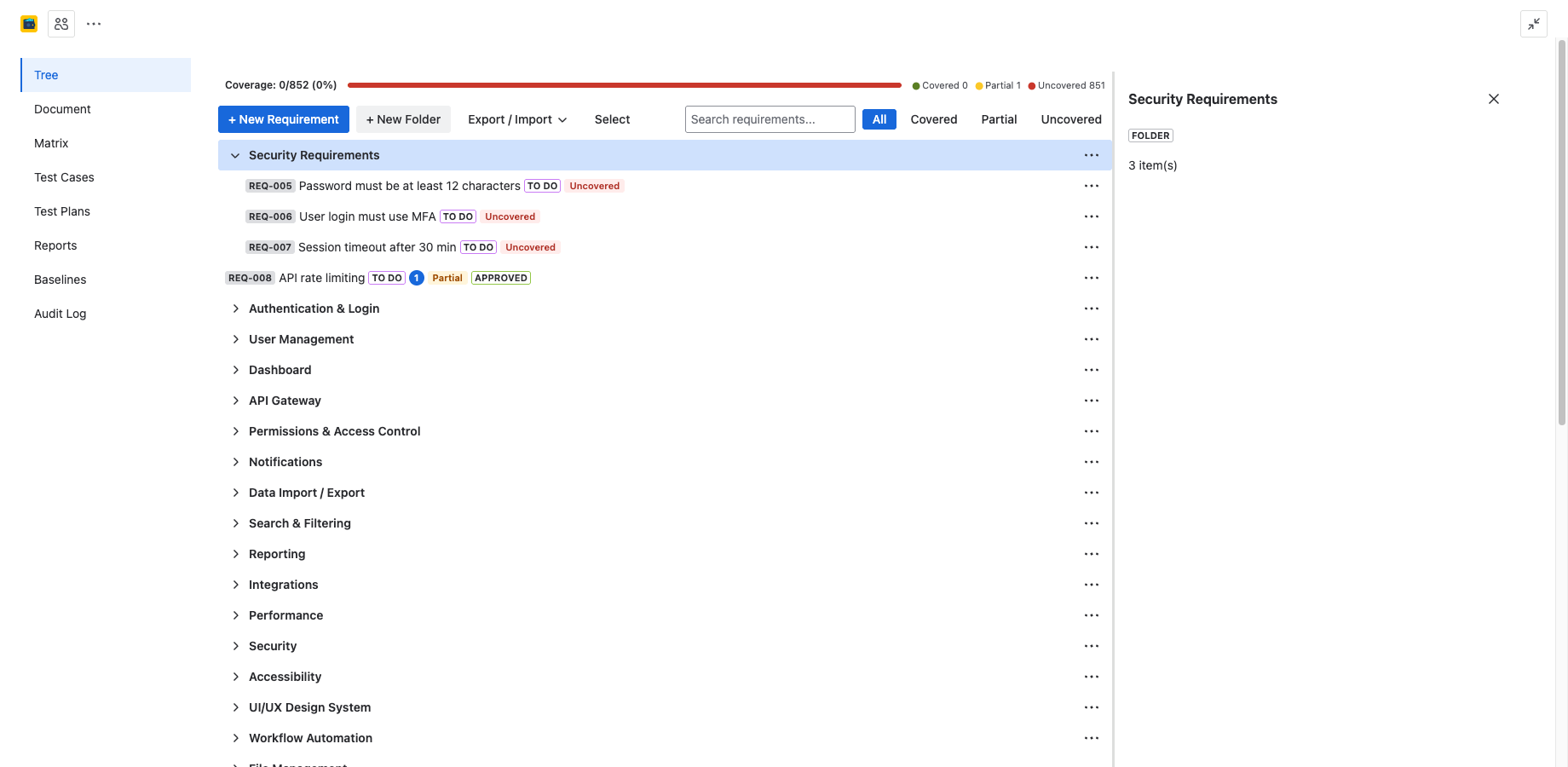
- Navigate to the Requirements Tree tab in your project.
- Select the folder where you want the requirement to live (or use the root level).
- Click the + button in the toolbar or press N.
- Enter a summary and fill in the requirement details in the detail panel that opens.
Each requirement is created as a Jira issue of type Requirement, so it also appears in your Jira backlog and is searchable via JQL.
Requirement Fields
Every requirement has the following fields:
- Summary — a short, descriptive title for the requirement.
- Description — detailed specification text. Supports Jira rich text formatting.
- Type — classification of the requirement (see below).
- Status — the Jira issue status (e.g., To Do, In Progress, Done).
- Requirement ID — auto-generated identifier in
REQ-001format.
Auto-Generated IDs
4Spec automatically assigns a unique ID to every requirement when it is created. IDs follow the format PREFIX-NNN, where:
- PREFIX — defaults to
REQbut can be customized per project in Admin & Settings. - NNN — a sequential number, padded with leading zeros (e.g., 001, 002, 003).
IDs are immutable once assigned. Deleting a requirement does not recycle its ID.
Editing Requirements
Inline Editing
Click on a requirement's summary in the tree to edit it directly. Press Enter to save or Esc to cancel.
Detail Panel
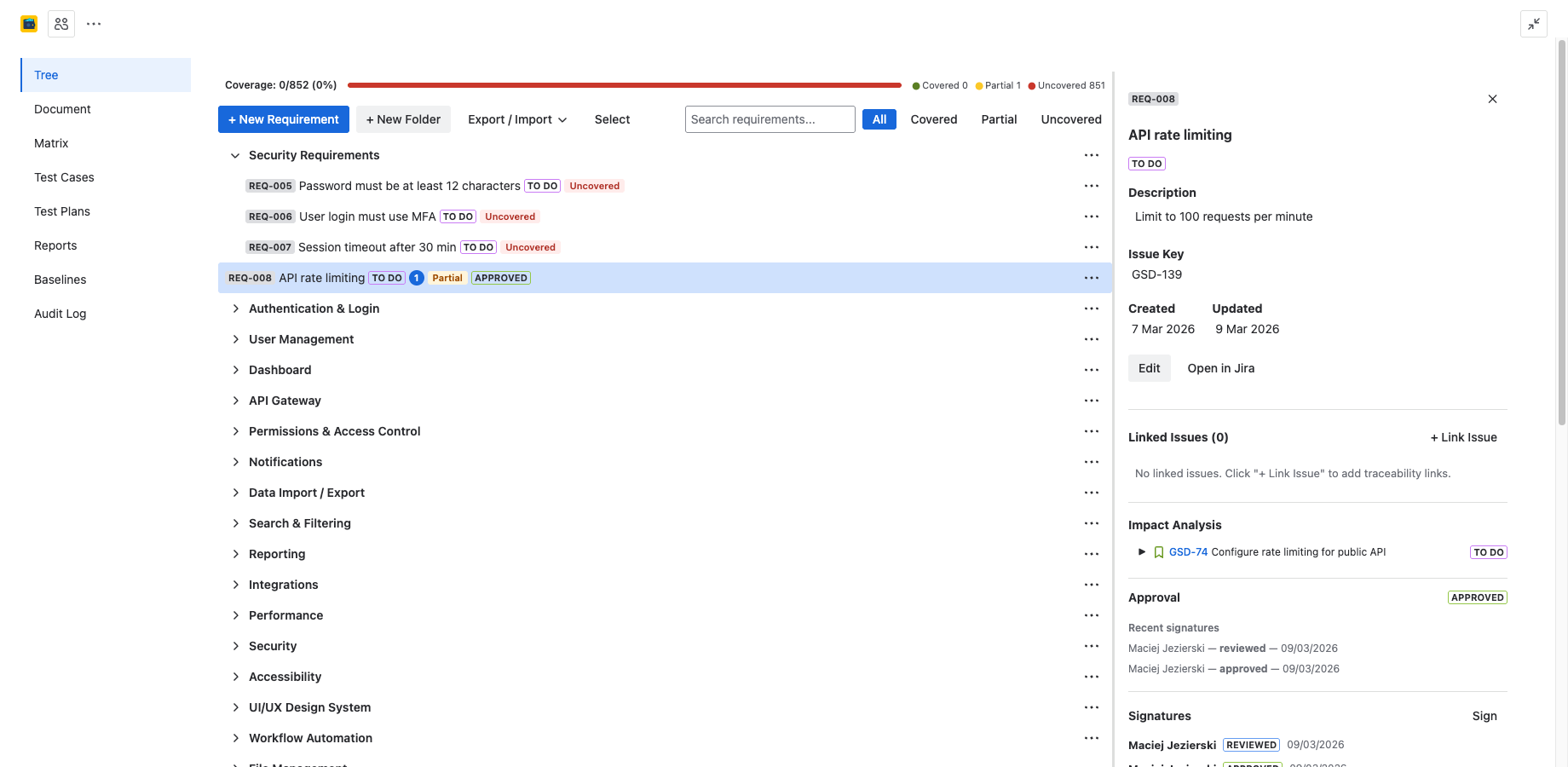
Click on a requirement row to open the detail panel on the right side. The detail panel provides access to all fields including description, type, links, and coverage status.
Deleting Requirements
Select one or more requirements and press Del or use the kebab menu to delete. A 5-second undo bar appears at the bottom of the screen, giving you a chance to reverse the action before the deletion is committed.
Deleted requirements are moved to the Jira trash and can be restored from there if needed. The deletion is recorded in the Audit Log.
Requirement Types
4Spec supports four requirement types to help you classify and filter your specifications:
| Type | Description |
|---|---|
| Business | High-level needs from stakeholders, customers, or market demands. Describes what the product should achieve from a business perspective. |
| System | Technical requirements that describe how the system behaves as a whole. Covers architecture, performance, and integration constraints. |
| Functional | Specific behaviors and features the system must implement. Describes what the system does in response to inputs or conditions. |
| Non-Functional | Quality attributes such as performance, security, usability, reliability, and maintainability. Describes how well the system performs. |
Bulk Operations
4Spec supports bulk operations for managing large numbers of requirements efficiently:
- Multi-select — hold Shift to select a range of requirements, or Ctrl/Cmd to select individual items.
- Bulk status change — select multiple requirements and change their status in one action.
- Bulk link — link multiple requirements to a Jira issue simultaneously.
- Bulk delete — delete multiple requirements at once (with undo).
- Bulk move — drag multiple selected requirements to a different folder.
Next Steps
- Tree Structure — learn how to organize requirements in folders with drag-and-drop.
- Traceability — link requirements to Jira issues and track coverage.
- Document View — render requirements as a structured specification document.
Need Help?
For questions or feedback, contact contact@be4.software.