
Reports
Accessing reports
Open 4Spec from your project sidebar and switch to the Reports tab. All six report types are available as sub-tabs within this view. Select a report type to view it, then use the filters panel to narrow the data.
Report types
1. Coverage Report
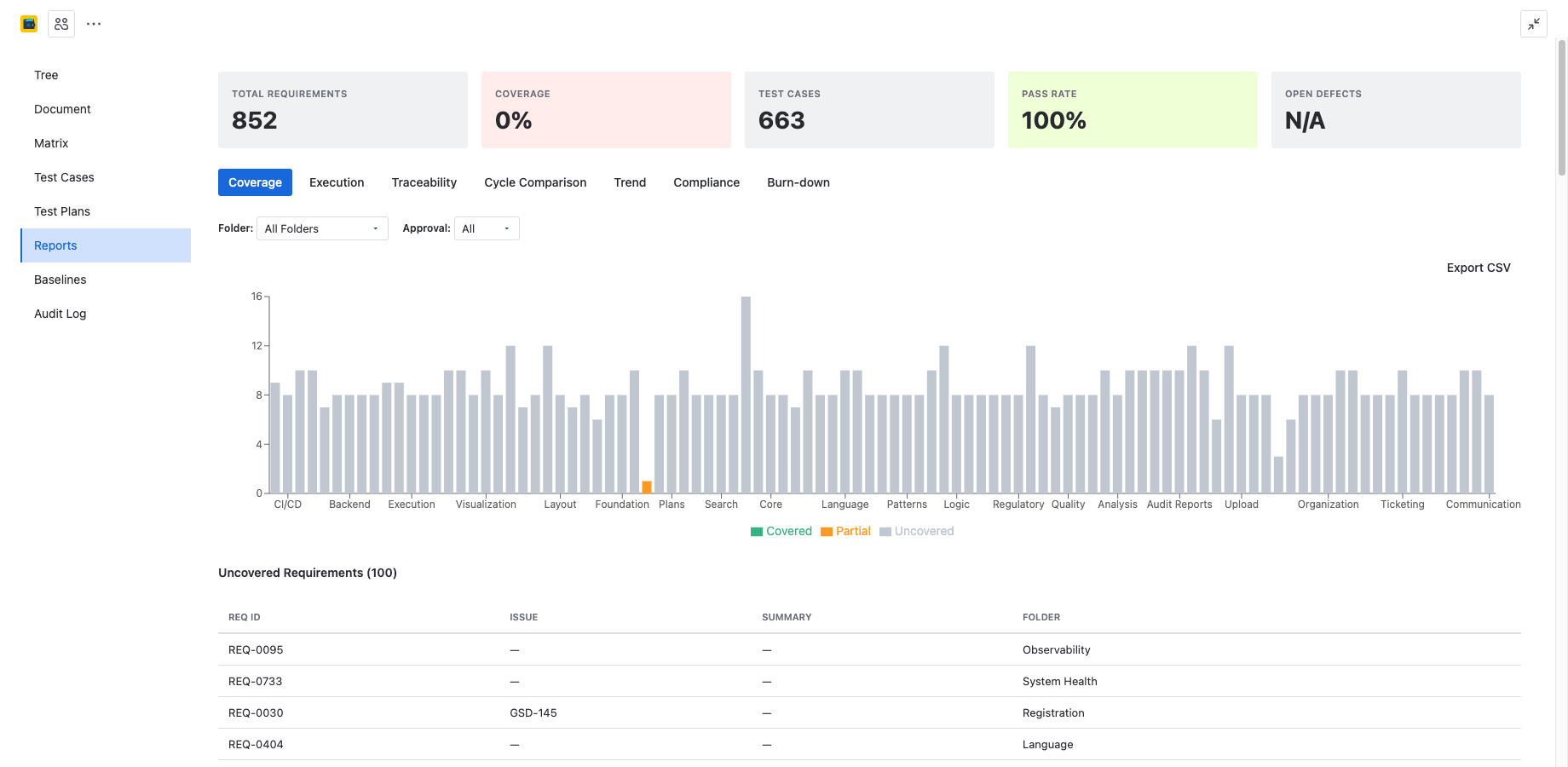
The Coverage Report shows how well your requirements are covered by test cases. It includes:
- Summary cards: Total requirements, covered, partially covered, and uncovered counts at a glance.
- Bar chart: Visual breakdown of coverage status across all requirements.
- Uncovered requirements table: A filterable list of requirements with no linked test cases, helping you identify gaps.
2. Execution Report
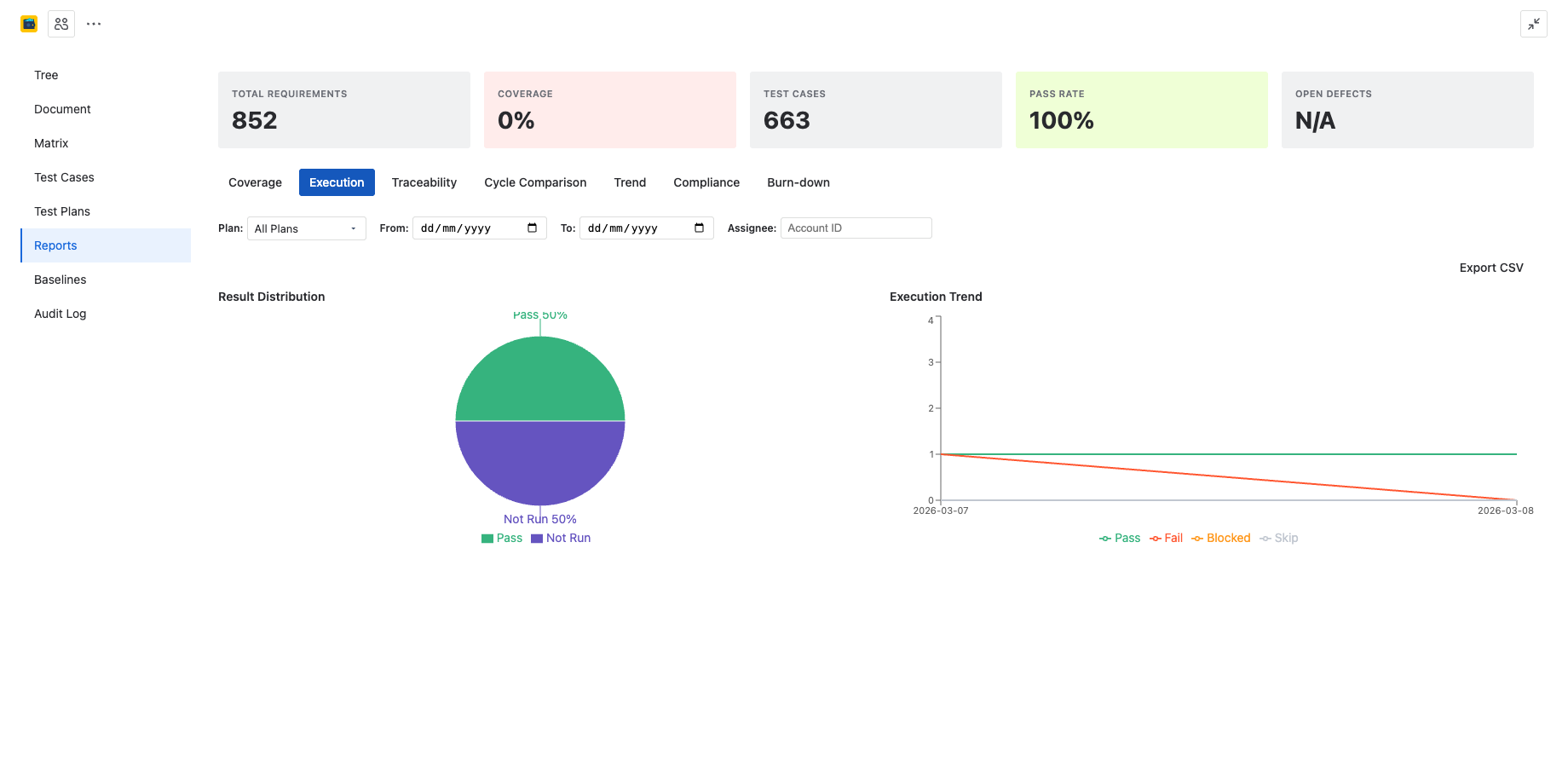
The Execution Report provides an overview of test execution results. It includes:
- Pie chart: Distribution of results (Pass, Fail, Blocked, Skip, Not Run).
- Trend line: Execution results over time, showing how test quality evolves across cycles or sprints.
3. Traceability Report
The Traceability Report shows the full chain from requirements through test cases to execution results and defects. Each row traces:
Requirement → Test Case → Execution Result → Linked Defect
This report is essential for demonstrating end-to-end traceability during audits and reviews.
4. Cycle Comparison
The Cycle Comparison report lets you compare results across multiple test cycles within a plan. It includes:
- Grouped bar chart: Side-by-side comparison of Pass/Fail/Blocked/Skip counts for each cycle.
- Comparison matrix: A table showing each test case's result in each cycle, making it easy to spot regressions or improvements.
5. Requirements Trend
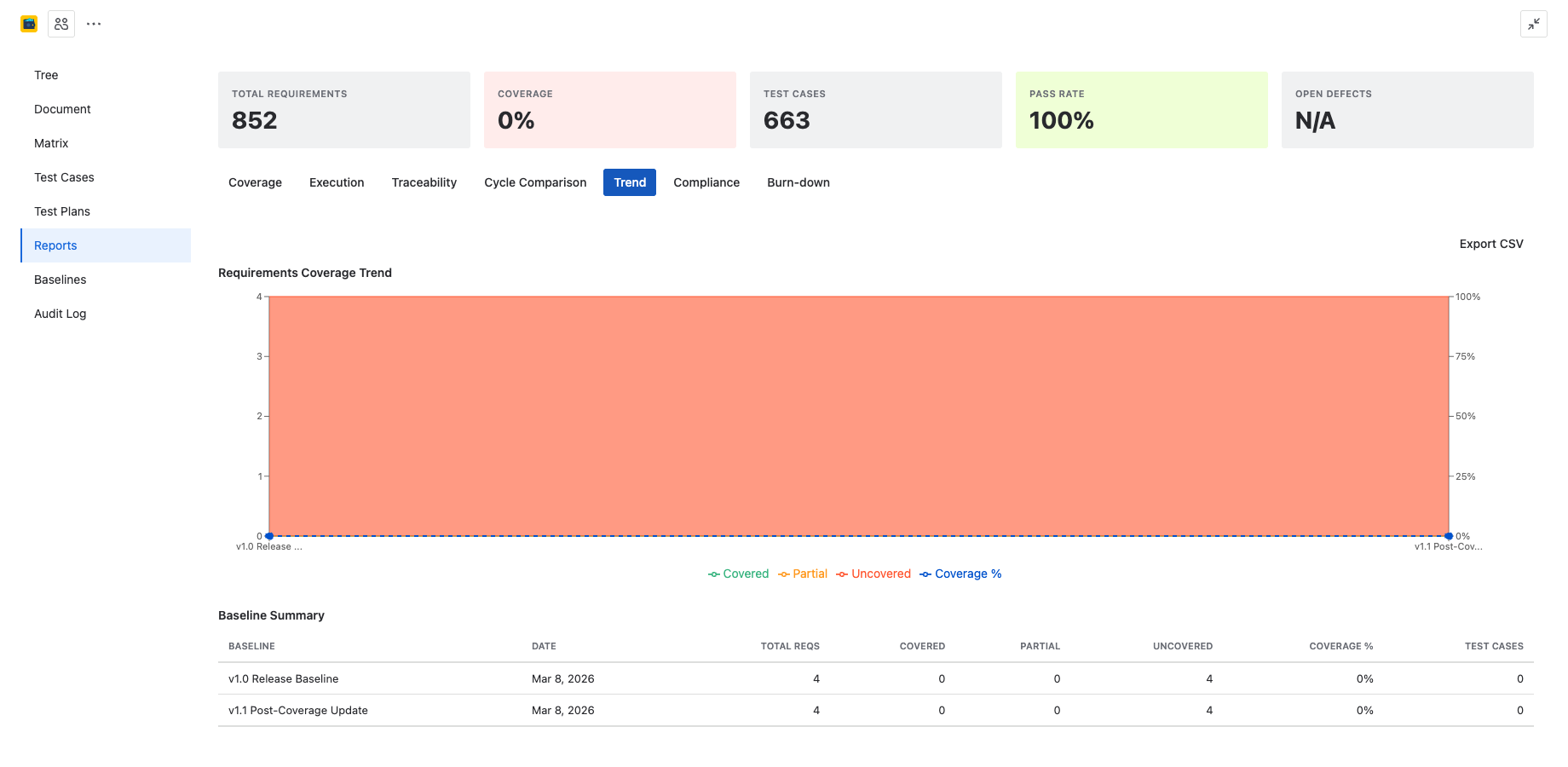
The Requirements Trend report tracks coverage percentage over time using baselines. It displays a composed chart showing how coverage has improved (or regressed) across baseline snapshots.
This report requires at least two baselines to display meaningful trend data.
6. Compliance Report
The Compliance Report is an audit-ready document that traces each requirement through the full compliance chain:
- Requirement — summary, status, and safety classification.
- Approval — approval status and approver details.
- Safety classification — ASIL, DAL, Risk Class, or custom classification.
- Coverage — linked test cases and coverage status.
- Signatures — electronic signatures with timestamp and signer.
- Test results — latest execution results for each linked test case.
- Defects — linked defects with status and resolution.
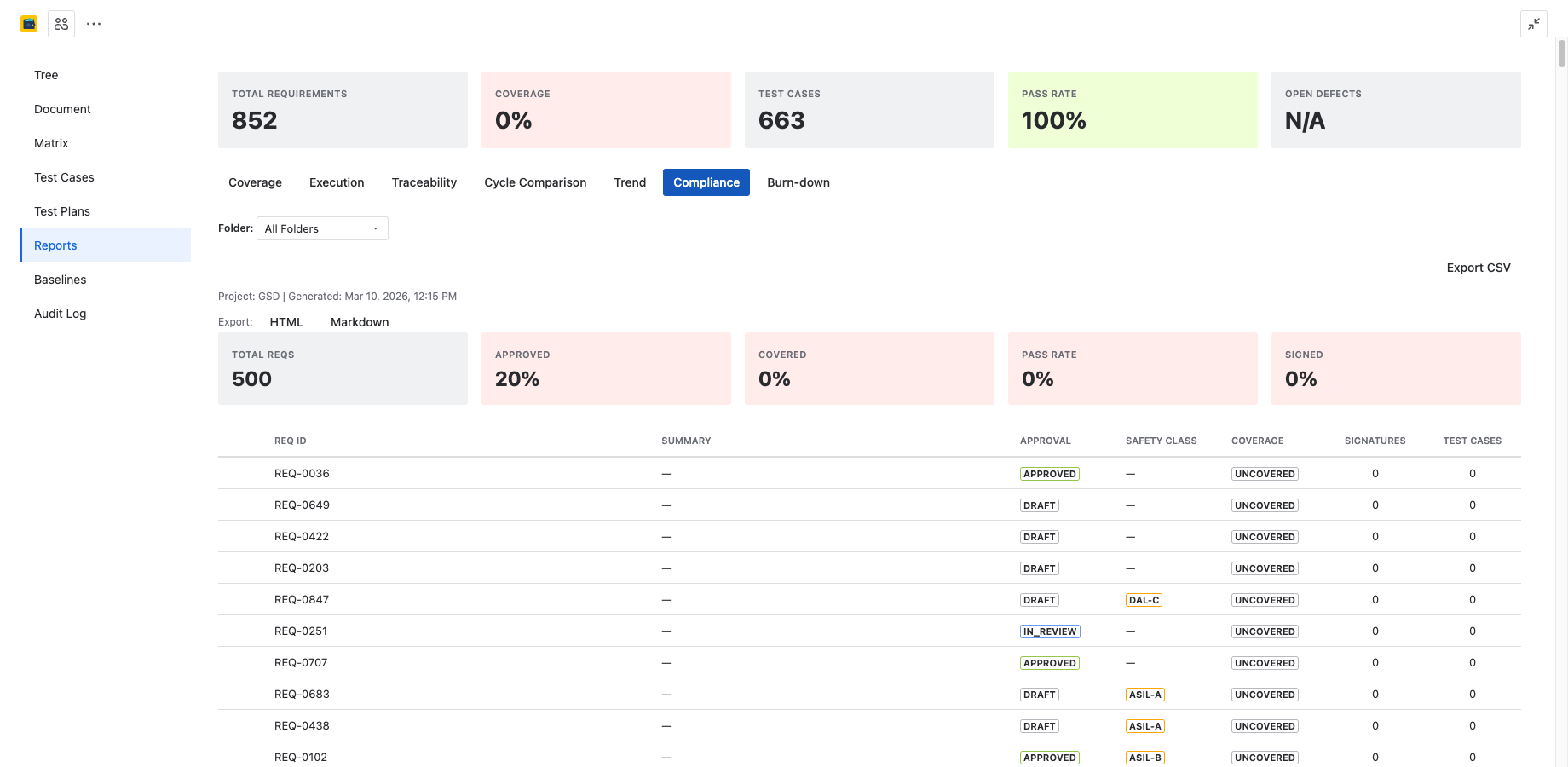
This report is designed for regulatory submissions and compliance reviews.
Advanced filters
All reports support a common set of filters that let you narrow the data to exactly what you need:
| Filter | Description |
|---|---|
| Date range | Restrict data to executions or changes within a specific time period. |
| Folder | Filter by requirement or test case folder in the tree. |
| Plan | Show data for a specific test plan. |
| Cycle | Show data for a specific test cycle within a plan. |
| Assignee | Filter by the team member assigned to executions. |
| Approval status | Filter by approval state (Pending, Approved, Rejected). |
| Safety classification | Filter by ASIL level, DAL, Risk Class, or custom classification. |
Filters are combined with AND logic. Adjust filters and the report updates in real time.
CSV export
Every report type supports CSV export. Click the Export CSV button in the report toolbar to download the current report data as a CSV file.
The export dialog lets you select which fields to include in the CSV. Deselect any columns you don't need before exporting. Filters are applied to the export — only the data currently visible in the report is exported.
HTML and Markdown export
The Compliance Report additionally supports export as self-contained HTML or Markdown documents. These formats are suitable for attaching to regulatory submissions, sharing with auditors, or archiving in document management systems.
Click the Export dropdown in the Compliance Report toolbar and select HTML or Markdown.