
Test Plans
Creating a test plan
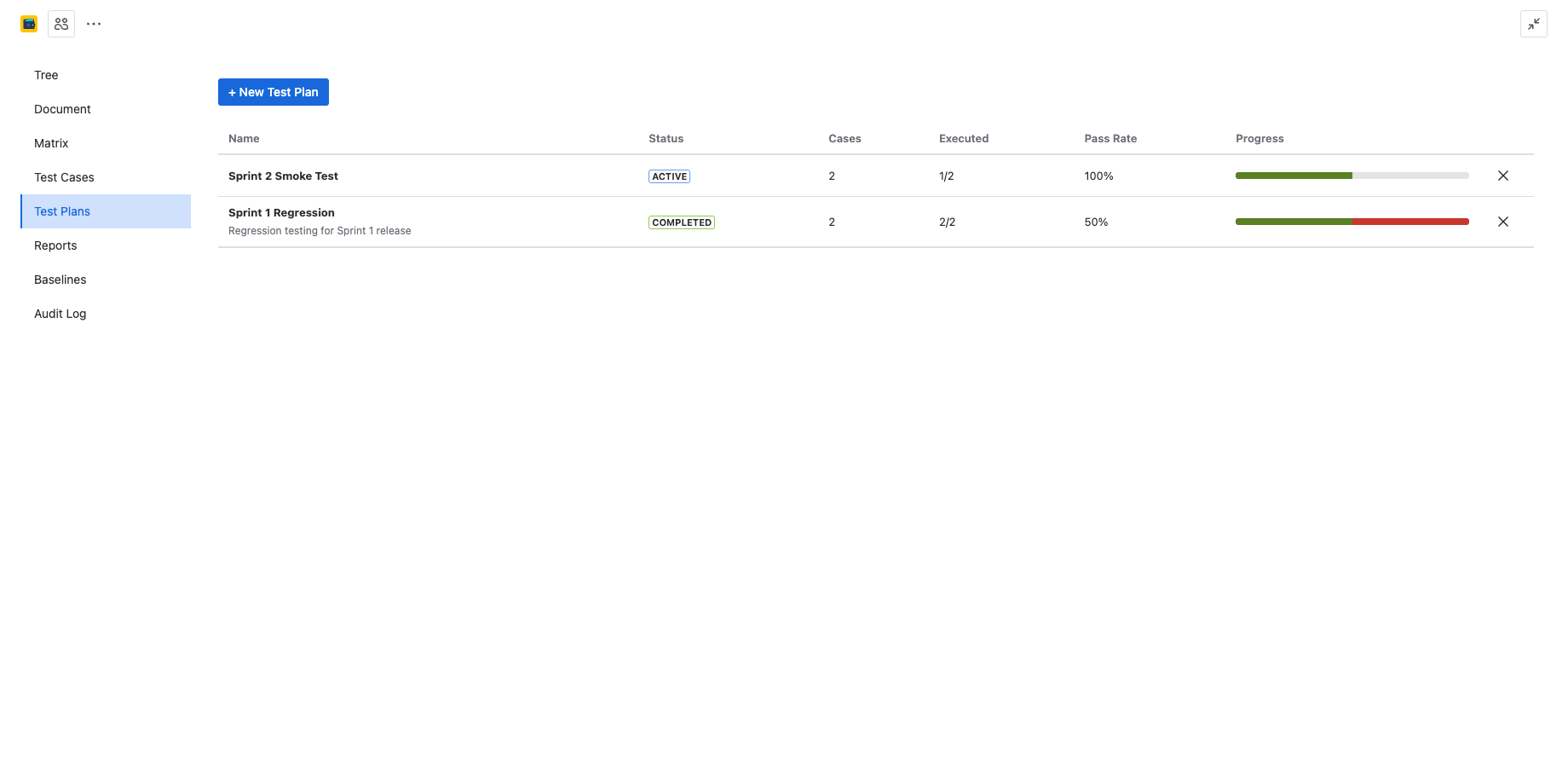
A test plan groups a set of test cases for a specific testing effort — such as a sprint, release, or regression cycle. To create a test plan:
- Open 4Spec from your project sidebar.
- Switch to the Test Plans tab.
- Click the + New Plan button.
- Enter a name and optional description.
- Click Create.
The plan is created in Planning status and is ready for test cases to be added.
Adding test cases to a plan
Once a plan is created, you can populate it with test cases:
- Open the test plan from the list.
- Click Add Test Cases.
- Browse or search the test case tree.
- Select one or more test cases using the checkboxes.
- Click Add Selected to include them in the plan.
Test cases can belong to multiple plans simultaneously. Adding a test case to a plan does not copy it — it references the original test case.
Removing test cases from a plan
To remove a test case from a plan, open the plan, select the test cases you want to remove, and click Remove from the toolbar. This does not delete the test case itself — it only removes the association with the plan.
If the test case has already been executed within the plan, the execution history is preserved even after removal.
Plan status
Test plans follow a three-stage lifecycle:
| Status | Description |
|---|---|
| Planning | The plan is being assembled. Test cases can be added or removed freely. |
| Active | Testing is in progress. Executions can be recorded. Test cases can still be added. |
| Completed | Testing is finished. The plan is locked for reference and reporting. |
Transition between statuses using the status dropdown in the plan header.
Progress tracking
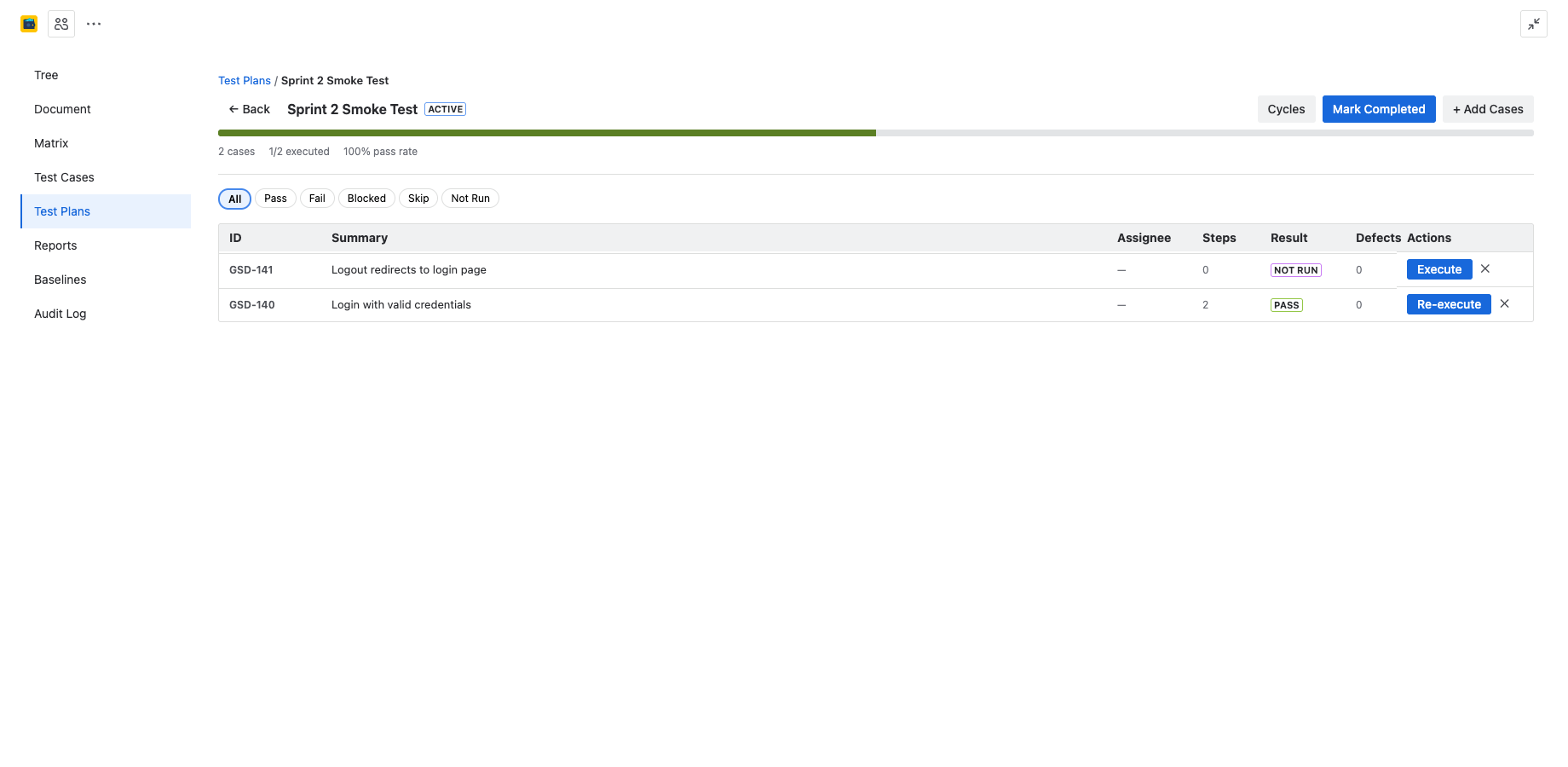
Each test plan displays real-time progress metrics:
- Executed: X out of Y test cases have at least one execution result.
- Pass rate: Percentage of executed test cases with a "Pass" result.
- Remaining: Number of test cases not yet executed.
Progress is shown as a summary bar at the top of the plan view, with color-coded segments for Pass (green), Fail (red), Blocked (orange), Skip (grey), and Not Run (light grey).
Assigning executions to team members
You can assign individual test cases within a plan to specific team members:
- Open the test plan.
- Click the assignee column next to a test case.
- Select a team member from the dropdown.
Assigned test cases appear in the assignee's My Assignments view, making it easy for testers to see their workload.
Bulk assignment
To assign multiple test cases at once:
- Select multiple test cases using the checkboxes.
- Click Assign in the toolbar.
- Choose a team member from the dropdown.
- All selected test cases are assigned to that person.
Bulk assignment is useful when distributing test cases across a team for a sprint or release cycle.