
Electronic Signatures
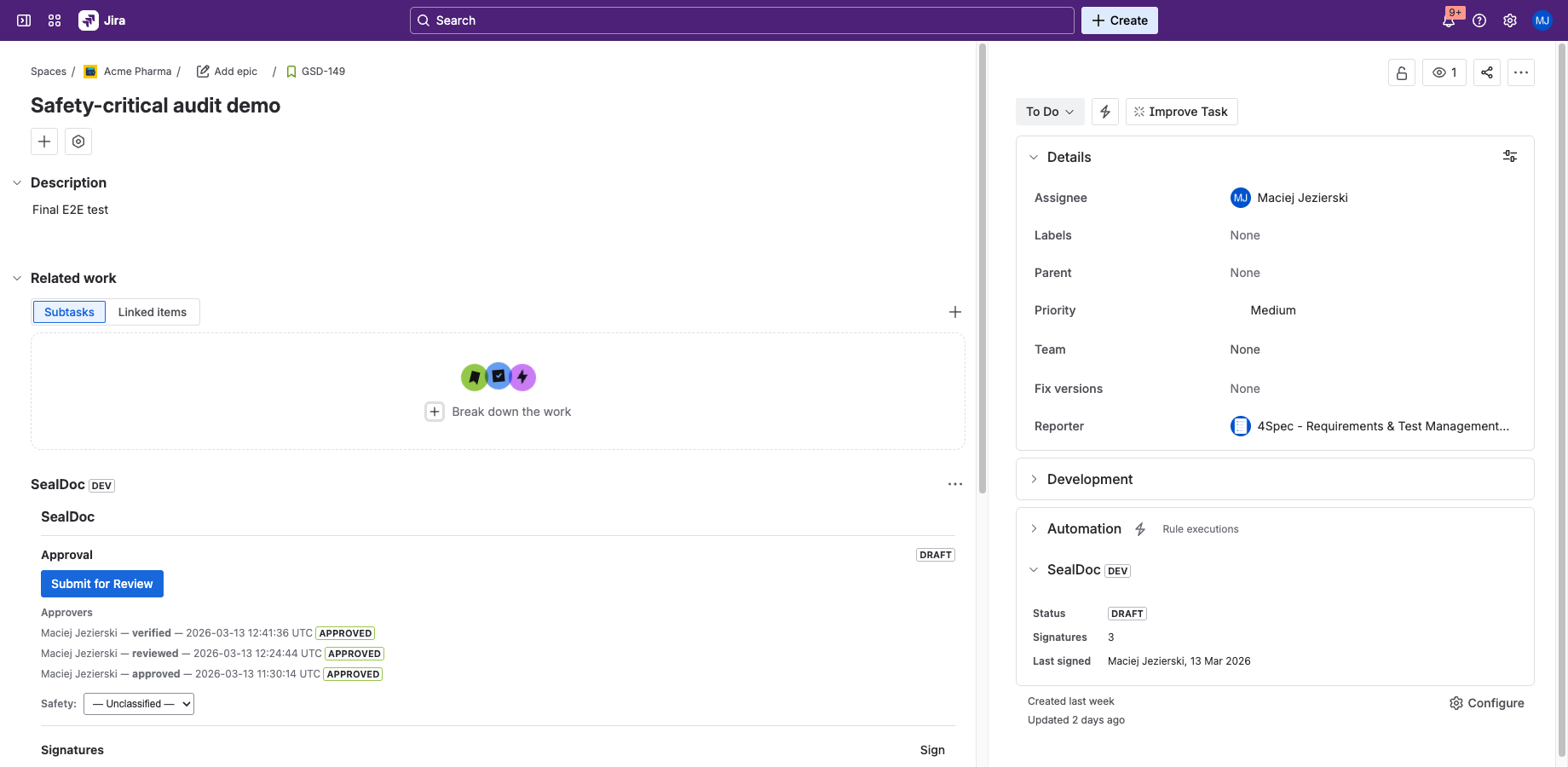
Signing Ceremony
Every SealDoc signature requires three components, designed to meet 21 CFR Part 11 §11.200(a)(1):
- Jira session — your authenticated Jira identity (who you are). Managed by Atlassian SSO/2FA/SAML.
- Signer affirmation — type your full name to affirm intent (what you mean). Captured alongside the signature meaning.
- Signing PIN — your personal 4–6 digit PIN (something you know). The second identification component.
All three must be present for the signature to be recorded. The ceremony captures a content hash snapshot of the document at the moment of signing.
Signature Meanings
Each signature includes a meaning that describes the signer's intent. SealDoc supports six standard meanings:
| Meaning | When to Use |
|---|---|
| Approved | Formal approval of the document content. Typically used by approvers in the approval workflow. |
| Reviewed | Indicates the signer has reviewed the content. Does not imply approval. |
| Verified | Confirms that the content has been verified against a reference or standard. |
| Witnessed | Attests that the signer witnessed a process or action described in the document. |
| Authored | Indicates the signer is the author or primary contributor of the document. |
| Acknowledged | Confirms the signer has read and acknowledges the content. |
Content Hash & Snapshot
At signing time, SealDoc computes a SHA-256 hash of the document content. For Jira issues, this includes:
- Summary (title)
- Description
- Status
- Priority
- Attachments (file names and sizes)
- Safety classification (if set)
The content hash is stored with the signature record. If any of these fields change after signing, the content hash will no longer match — proving that the document was modified after the signature was applied.
Fields NOT Included in the Content Hash
The following Jira fields are not included in the content hash and do not trigger signature revocation when changed:
- Comments
- Labels and components
- Watchers and voters
- Time tracking (logged time, estimates)
- Sprint and fix version assignments
- Issue links (parent, blocker, relates-to, etc.)
- Custom fields (other than safety classification)
This scope is fixed and not configurable. If your regulatory process requires that changes to custom fields or comments invalidate signatures, you should document this limitation in your validation protocol and implement procedural controls (e.g., SOPs that require re-signing after substantive comment changes).
Signature Revocation
Signatures can be revoked in two ways:
- Self-revocation — a signer can revoke their own signature at any time. No PIN is required for revocation because revocation is a non-signing administrative action (the revocation itself is logged in the audit trail).
- Admin revocation — a user with the
manage-sealdocpermission can revoke any signature.
Revoked signatures remain in the audit trail (they are never deleted) but are marked as revoked with a timestamp and reason.
Automatic Revocation (Revert on Edit)
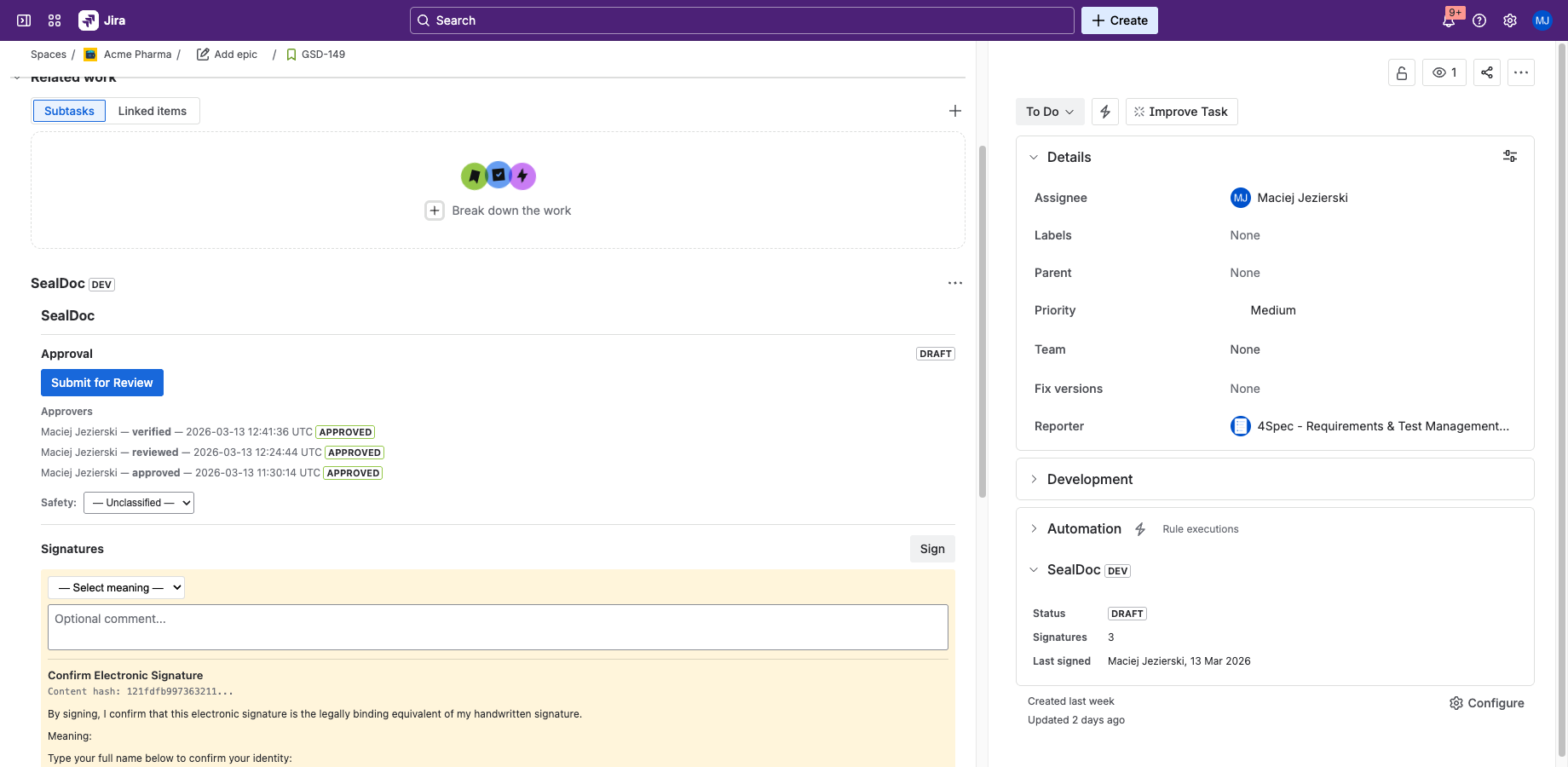
When a signed document is edited, SealDoc recomputes the content hash and compares it to the hash recorded at signing time. If the hash has changed, all active signatures are automatically revoked. The revocation is logged in the audit trail with the reason "content changed".
Fields that trigger revert (included in the content hash):
- Summary (title), description, status, priority, attachment metadata (filenames and sizes), safety classification
Fields that do not trigger revert (excluded from the content hash):
- Comments, labels, watchers, time tracking, custom fields not related to safety classification
For Confluence pages, revert triggers on page publish (not during draft editing).
Batch Signing
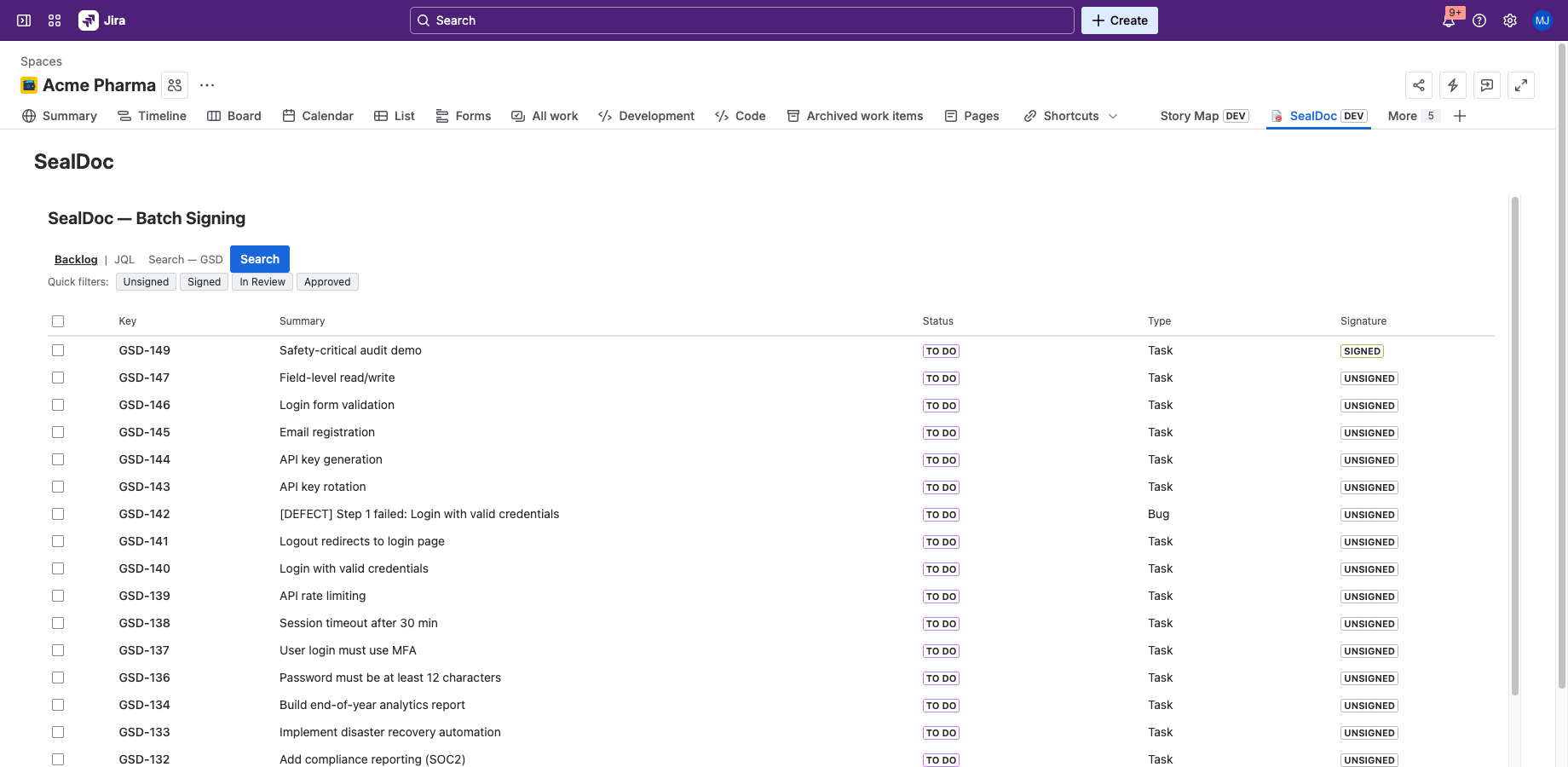
SealDoc supports signing up to 10 documents in a single ceremony. From the project page:
- Select the issues you want to sign.
- Choose a signature meaning and enter your comment.
- Affirm your identity and enter your PIN once.
- SealDoc applies the signature to all selected issues, computing individual content hashes for each.
Each issue gets its own signature record with its own content hash — the batch ceremony is a convenience that does not compromise per-document integrity. The 10-document limit exists because Forge imposes a 25-second execution timeout per function invocation.
Confluence Page Signing
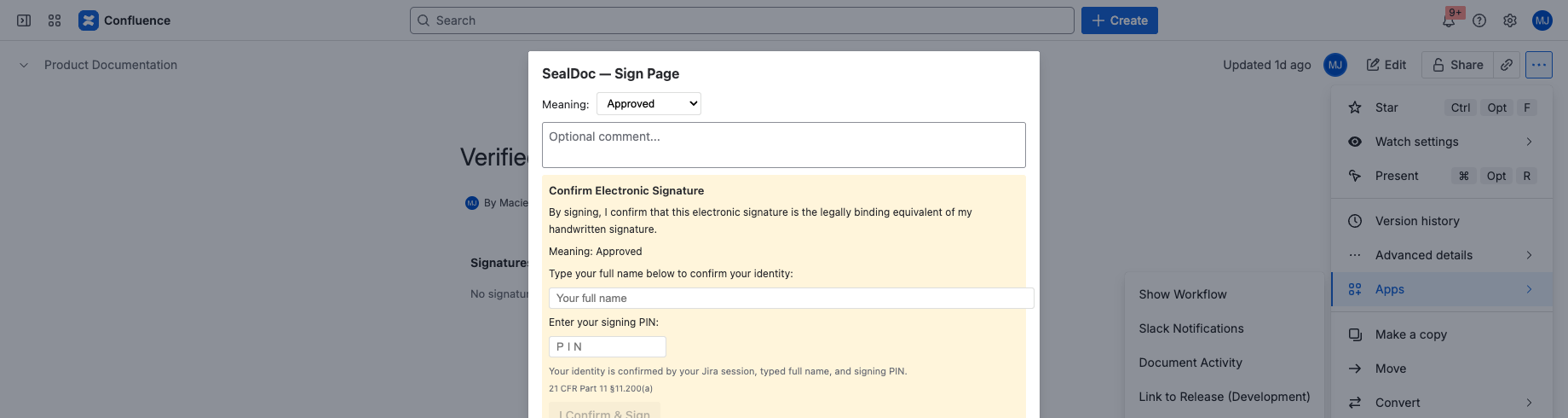
SealDoc can sign Confluence pages with the same signing ceremony used for Jira issues. Confluence signing is available from the page actions menu ("Sign this page") and is included automatically when SealDoc is installed for Confluence.
Confluence Content Hash Scope
For Confluence pages, the content hash includes:
- Page title
- Page body content (rendered HTML)
The following are not included in the Confluence content hash:
- Page labels
- Page restrictions (view/edit permissions)
- Embedded macro output (macros are included as raw markup, not their rendered output)
- Attached files (Confluence attachments are separate from page body)
- Page comments
- Page version history
Revert-on-edit for Confluence triggers when the page is published, not during draft editing. Editing a page in draft mode does not revoke signatures until the draft is published.
Confluence Signature Block Macro
SealDoc provides a Confluence macro that displays a summary of signatures on the page. Insert the macro from the Confluence editor (type /SignatureBlock or use the “/” menu → search “Signature Block”). The macro shows current signature status, signer names, meanings, and timestamps inline within the page content.
Digital Signatures (PKI)
SealDoc supports optional PKI-based digital signatures using ECDSA or Ed25519 algorithms. This feature is intended for organizations that require stronger cryptographic non-repudiation beyond PIN-based signing:
- Key generation — the private key is generated client-side in the browser and never leaves the user's device.
- Public key registration — the user registers their public key with SealDoc. The public key is stored in Forge SQL.
- Signing — during the signing ceremony, the document content hash is signed with the user's private key. The digital signature is stored alongside the standard signature record.
- Verification — anyone with the signer's public key can independently verify that the signature was created by the private key holder.
PKI digital signatures are optional and complementary to PIN-based signing. They do not replace the signing PIN — both can be used together. This feature may be relevant for organizations evaluating eIDAS Art. 26(c) requirements.