
Admin & Settings
Overview
SealDoc admin settings are accessible from Jira Administration → Apps → SealDoc. The admin page has three tabs:
| Tab | Purpose |
|---|---|
| Settings | Signature policies, safety classification schemes, and regulatory framework configuration. |
| Permissions | Permission groups and role-based access control for SealDoc features. |
| Audit Log | Site-wide audit trail viewer with filtering and export. |
Signature Policies
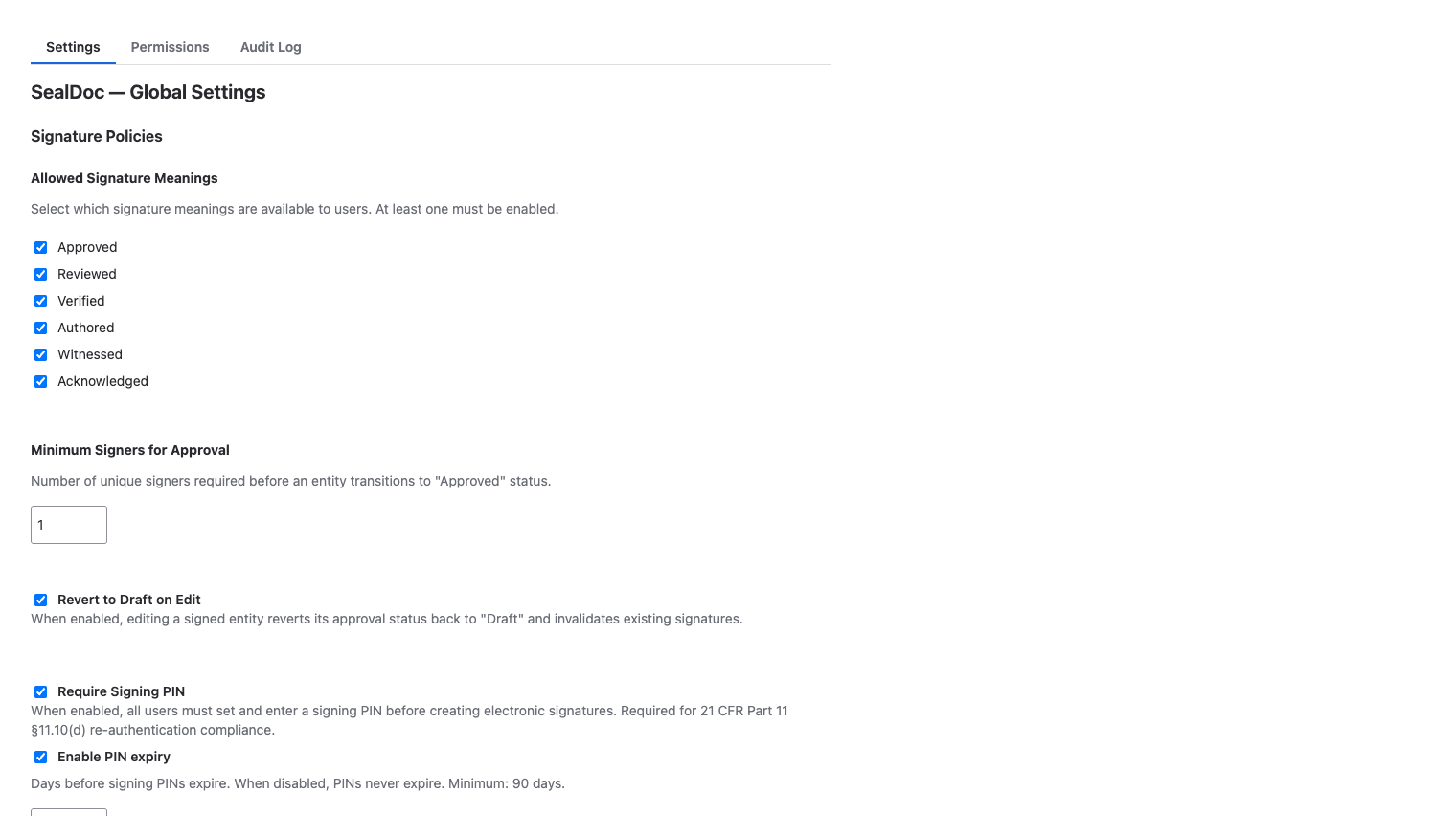
Configure how signatures work across your Jira site:
- Minimum signers — the default number of "Approved" signatures required for approval. Can be overridden per safety classification level.
- Separation of duties — enable person-level or department-level independence between submitter and approver.
- PIN expiry — toggle PIN expiry on or off. When enabled, set the number of days before PINs expire (default: 180, minimum: 90). When disabled, PINs never expire.
- Revert on edit — enable or disable automatic signature revocation when content changes (default: enabled).
Safety Classification
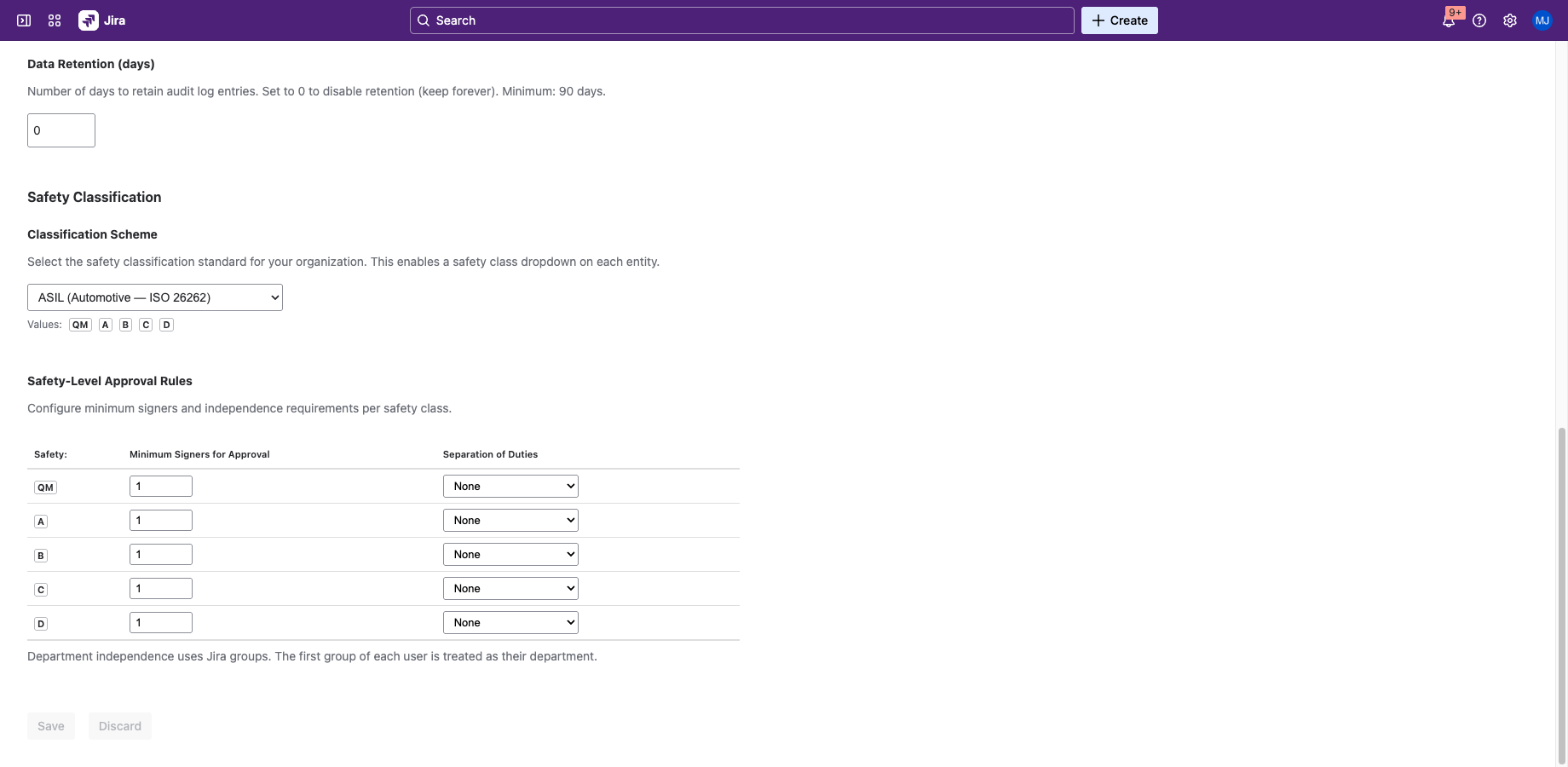
Configure safety classification schemes:
- Active scheme — select which scheme is active: ASIL, DAL, Risk Class, Custom, or None.
- Custom levels — define custom classification levels with names and ordering.
- Per-level rules — set minimum signers and independence requirements for each level.
See Safety Classification for detailed documentation.
Permission Groups
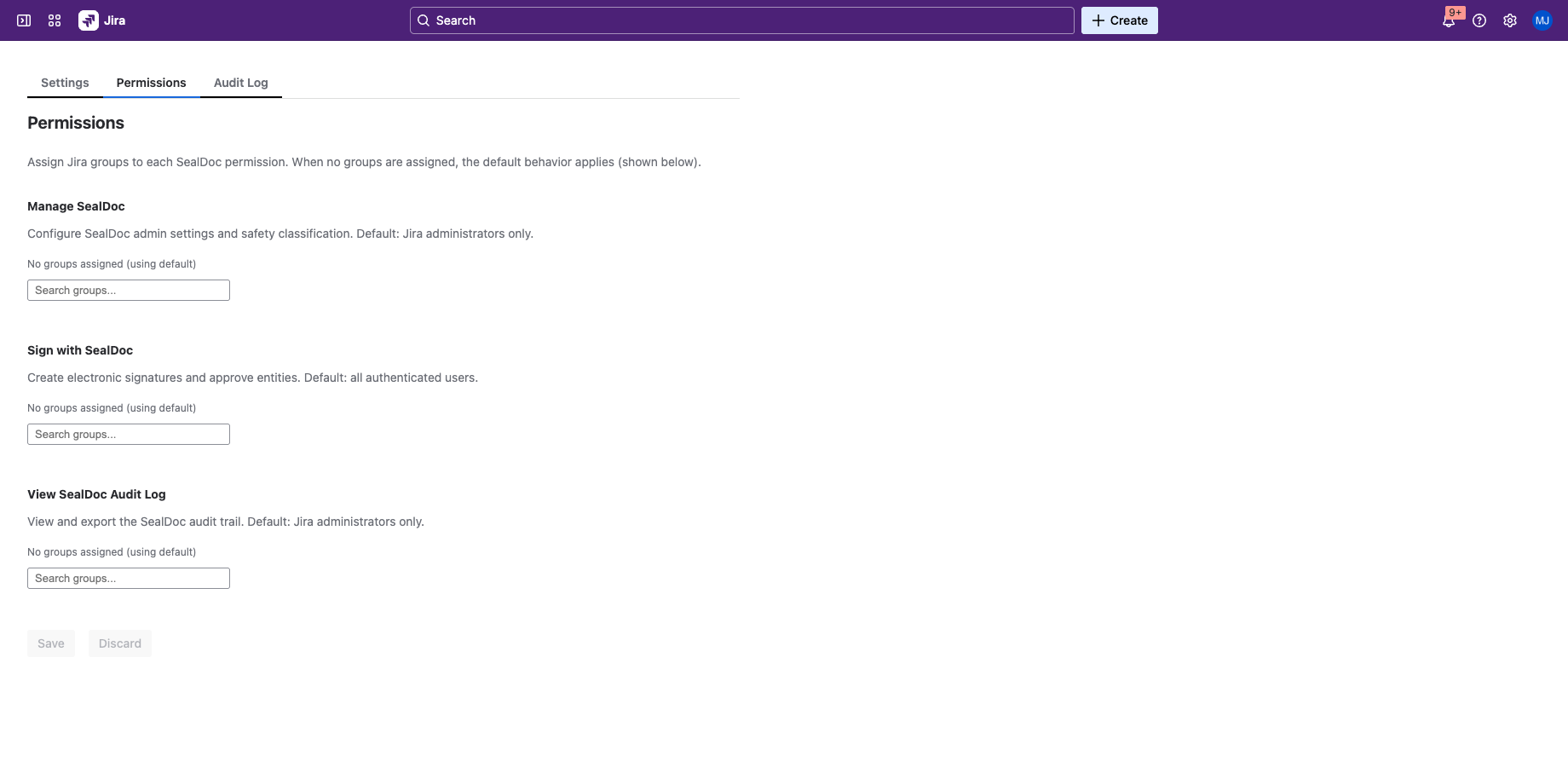
SealDoc uses three permission levels, managed in the SealDoc admin page (Jira Administration → Apps → SealDoc → Permissions tab):
| Permission | Who Has It | What It Allows |
|---|---|---|
| sign-sealdoc | All authenticated Jira users (default) | Sign documents, set up personal PIN, view signatures. |
| audit-sealdoc | Jira site administrators (default) | View and export the audit trail, view signature snapshots. |
| manage-sealdoc | Jira site administrators (default) | All permissions plus: configure signature policies, manage safety classification, reset user PINs, revoke any signature, manage permissions. |
Permissions can be scoped to specific Jira groups if your organization needs more granular control.
Relationship to Jira Permissions
SealDoc permissions are independent of Jira project roles and permission schemes. A user might have Jira project admin access but not the manage-sealdoc permission, or vice versa. By default, Jira site administrators inherit manage-sealdoc and audit-sealdoc as a fallback. To restrict SealDoc access beyond Jira defaults, map permissions to specific Jira groups in the Permissions tab.
Regulatory Framework
Select the regulatory framework your organization needs to comply with. This affects which features are prominently displayed and which validation rules are enforced:
- 21 CFR Part 11 — enables two-component signing requirements, signer affirmation, and FDA-specific audit trail fields.
- EU Annex 11 — enables HMAC chain sealing and GMP-specific integrity checks.
- eIDAS — enables signer identity binding and intent affirmation fields.
- None — no framework-specific validation rules enforced.
JQL Search
SealDoc stores the approval status as a Jira entity property, enabling JQL-based search and filtering. You can use the SealDoc status in Jira filters, boards, and dashboards:
| Status Value | Meaning |
|---|---|
| Unsigned | No signatures on this issue |
| Signed | At least one signature, but not submitted for approval |
| In Review | Submitted for approval, awaiting quorum |
| Approved | Minimum signer quorum met |
The status is stored as a Jira entity property and appears as a lozenge badge on issue cards and in the issue sidebar. It is updated automatically when signatures are added, revoked, or when content changes trigger a revert. The entity property is indexed by Jira, making it available in JQL queries, filters, and board configurations.
Jira Automation Compatibility
SealDoc's entity property can be used as a condition in Jira Automation rules. For example, you can create automation rules that trigger when an issue's SealDoc status changes (via the "Entity property changed" trigger, if available in your Jira plan). SealDoc does not expose custom automation actions or triggers beyond the entity property — signing, approving, and rejecting are user-initiated actions only.
Jira Service Management (JSM)
SealDoc is fully compatible with JSM issues (incidents, service requests, change requests). JSM issues are standard Jira issues and can be signed, approved, and tracked in the audit trail like any other issue type. SealDoc's approval workflow is independent of JSM's built-in approval gates — both can be used on the same issue without conflict.
Forge Permissions & Scopes
SealDoc requests the following Forge scopes during installation. These scopes define what data the app can access:
| Scope | Purpose |
|---|---|
read:jira-work | Read Jira issue data (summary, description, status, priority, attachments) for content hash computation |
read:jira-user | Verify user account status (active/deactivated) before signing |
write:jira-work | Write entity properties (SealDoc status lozenge) to Jira issues |
read:confluence-content.all | Read Confluence page content for content hash computation |
read:confluence-content.summary | Read Confluence page summaries for display in the signing UI |
write:confluence-content | Write entity properties to Confluence pages |
storage:app | Read/write Forge Storage (admin settings, HMAC sealing key) |
report:personal-data | GDPR personal data reporting (weekly scheduled trigger) |
read:group:jira | Resolve Jira group membership for permission checks and department-level separation of duties |
SealDoc does not request any scopes beyond those listed above. The app makes no outbound network calls — all data processing occurs within the Atlassian Forge runtime.
Audit Log Viewer
The admin audit log tab provides a site-wide view of all SealDoc activity:
- Filter by document — search by Jira issue key or Confluence page.
- Filter by action — narrow to specific actions (sign, approve, reject, revoke, etc.).
- Filter by user — view actions by a specific user.
- Filter by date range — limit to a specific time period.
- Export — download as CSV or PDF for external review.
- Validate chain — run hash chain and HMAC validation on the audit trail.