
Confluence Signing
SealDoc extends the same regulated electronic signature capabilities to Confluence Cloud pages. Sign SOPs, policies, design documents, and any other Confluence content with the same two-component signing ceremony used for Jira issues.
Prerequisites
- Confluence Cloud — SealDoc's Confluence modules require Confluence Cloud on the same Atlassian site as your Jira instance.
- SealDoc installed for Confluence — when installing SealDoc from the Atlassian Marketplace, authorize it for both Jira and Confluence. If SealDoc is already installed for Jira only, a site administrator can add Confluence authorization from the Manage apps page.
- Page edit permission — to insert the Signature Block macro, you need edit permission on the Confluence page.
Signing a Confluence Page
To sign a Confluence page:
- Open the Confluence page you want to sign.
- Click the page actions menu (the “…” button in the top-right corner of the page).
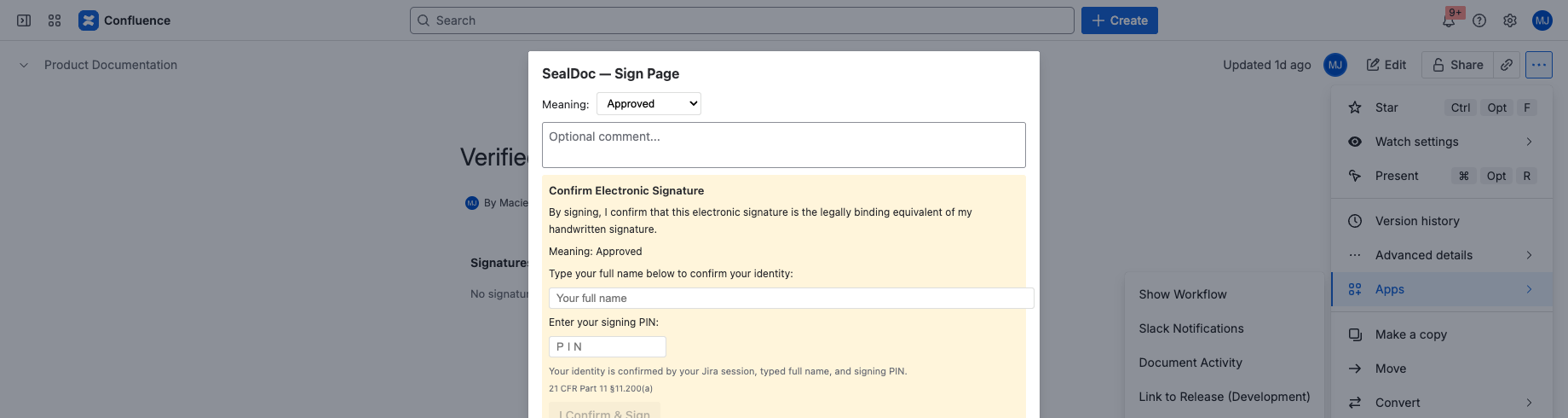
- Select Sign this page from the menu. A modal dialog opens with the SealDoc signing ceremony.
- Choose a signature meaning (Approved, Reviewed, Verified, Witnessed, Authored, or Acknowledged).
- Optionally add a comment explaining the reason for your signature.
- Affirm your identity by typing your full name.
- Enter your signing PIN to complete the ceremony.
If this is your first time signing with SealDoc, you will be prompted to create a signing PIN before proceeding. See Signing PIN for details.
Signature Block Macro
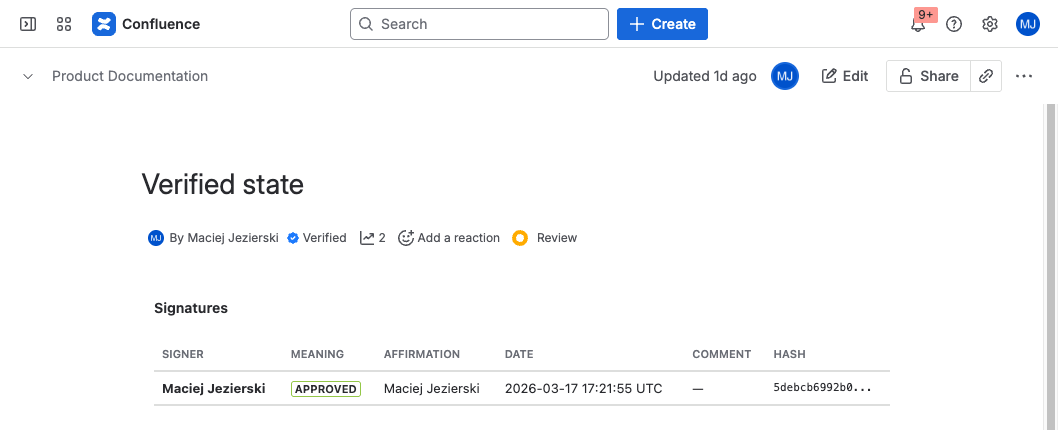
The Signature Block macro displays an inline summary of all signatures on the current page. It provides at-a-glance visibility of who signed, when, and with what meaning — directly within the page content.
Inserting the Macro
- Open the Confluence page in edit mode.
- Type
/SignatureBlockor type/to open the insert menu and search for Signature Block. - Select Signature Block (by SealDoc).
- Publish the page. The macro renders the current signature status.
The macro automatically updates each time the page is viewed — no manual refresh is needed.
What the Macro Shows
| Column | Description |
|---|---|
| Signer | Full name of the person who signed. |
| Meaning | Color-coded badge (e.g., Approved, Reviewed, Verified). |
| Date | Timestamp of when the signature was applied. |
| Comment | Optional comment provided during signing. |
| Content Hash | Truncated SHA-256 hash of the page content at signing time. |
| Status | Active or Revoked. Revoked signatures are displayed with a strikethrough style. |
Content Hash Scope
When you sign a Confluence page, SealDoc computes a SHA-256 hash of the following fields:
- Page title
- Page version number
- Page body content (storage format HTML)
- Attachment metadata (file names, sorted alphabetically)
- Safety classification (if set)
Fields NOT Included
The following are not included in the Confluence content hash and will not trigger signature revocation:
- Page labels
- Page restrictions (view/edit permissions)
- Rendered macro output (macros are hashed as raw markup, not their rendered result)
- Page comments
- Page version history (only the current version is hashed)
- Space-level settings
Revert on Edit
When a signed Confluence page is edited and published, SealDoc recomputes the content hash. If the hash differs from the signing-time hash, all active signatures are automatically revoked. The revocation is logged in the audit trail with the reason “content changed”.
Key behaviors:
- Draft editing does not revoke signatures. You can edit a page in draft mode without affecting existing signatures. Revocation only occurs when the draft is published.
- Each signature has its own hash. If a page was signed at version 5 and again at version 7, editing the page at version 8 revokes both signatures (because both hashes will differ from the new content).
- Cosmetic changes count. Any change to the page body — even whitespace or formatting — produces a different hash and triggers revocation. This is by design for regulatory traceability.
Confluence vs Jira Signing
The signing ceremony is identical for both Jira issues and Confluence pages. The differences are:
| Feature | Jira Issues | Confluence Pages |
|---|---|---|
| Access point | Issue sidebar panel | Page actions menu |
| Signature display | Issue panel + context badge | Signature Block macro (inline) |
| Revert trigger | Issue field change (via Jira event) | Page publish (via Confluence event) |
| Batch signing | Up to 10 issues from the project page | Not available (sign pages individually) |
| Approval workflow | Draft → In Review → Approved | Same workflow (per-page) |
| Safety classification | Assigned per issue | Assigned per page |
| Content hash scope | Summary, description, status, priority, attachments, safety class | Title, version, body, attachments, safety class |
Common Use Cases
SOPs and Policies
Standard Operating Procedures stored in Confluence can be signed by the author, reviewer, and approver — creating a complete signature trail that satisfies GMP and FDA requirements for controlled documents.
Design Documents
Engineering design documents, architecture decisions, and technical specifications can be signed for formal approval. The content hash ensures that the approved version is tamper-evident.
Meeting Minutes
Meeting minutes and decision records can be acknowledged by all attendees using the “Acknowledged” or “Witnessed” meaning, creating an auditable record of who reviewed the minutes.
Regulatory Submissions
Documents prepared for regulatory submission (e.g., validation protocols, risk assessments, test reports) can carry electronic signatures that meet 21 CFR Part 11 and EU Annex 11 requirements — without leaving the Atlassian ecosystem.
Permissions
SealDoc requires the following Confluence scopes (granted during installation):
| Scope | Purpose |
|---|---|
read:confluence-content.all | Read page content to compute the content hash at signing time. |
write:confluence-content | Required for the Signature Block macro to render within the page. |
SealDoc does not modify page content. The write scope is required by Atlassian for Custom UI macros to render, but SealDoc only reads page data.
Troubleshooting
"Sign this page" not appearing
- Verify SealDoc is installed for Confluence (not just Jira). Check Manage apps in Confluence administration.
- Try refreshing the page — Forge modules may take a moment to load after installation.
Signature Block macro shows "No signatures"
- The page has no signatures yet. Sign the page first, then refresh.
- If signatures were applied but the macro shows empty, check that the macro is on the same page (macros cannot display signatures from a different page).
Signatures revoked unexpectedly
- Any page publish — even minor formatting changes — triggers revert-on-edit. Check the audit trail for the revocation reason and timestamp.
- If another user published the page, their edit will have revoked all existing signatures.
Next Steps
- Electronic Signatures — full signing ceremony reference, PKI digital signatures.
- Signing PIN — PIN security, expiry, and lockout policies.
- Approval Workflow — configure the Draft → In Review → Approved workflow.
- Audit Trail — view and export the tamper-evident audit log.
- Admin & Settings — configure signature policies and Confluence permissions.
Need Help?
For questions or feedback, contact contact@be4.software or visit our support portal.